Permissions
Permissions define what actions a user can perform within a project. They are assigned through roles and are essential for controlling access and responsibilities within GeoWork.
Throughout this documentation, the phrase “user with sufficient permissions” (or similar variations) refers to a user whose assigned role grants them the required permissions to perform a specific action.
Permissions cannot be assigned directly to users. They can only be granted through roles.
Manage permissions
Permissions are managed within the Access Management section of the project settings. They can be configured in two ways:
- During the creation of a role
- By editing an existing role
When performing either of the processes listed above, a pop-up window will appear where the role’s settings can be managed. This window displays a list of all available permissions, each with a corresponding checkbox.
Check the boxes next to the permissions you want the role to have, and uncheck those you do not want to assign.
List of permissions
Below is a complete list of permissions that can be assigned to roles within a GeoWork project, along with their descriptions.
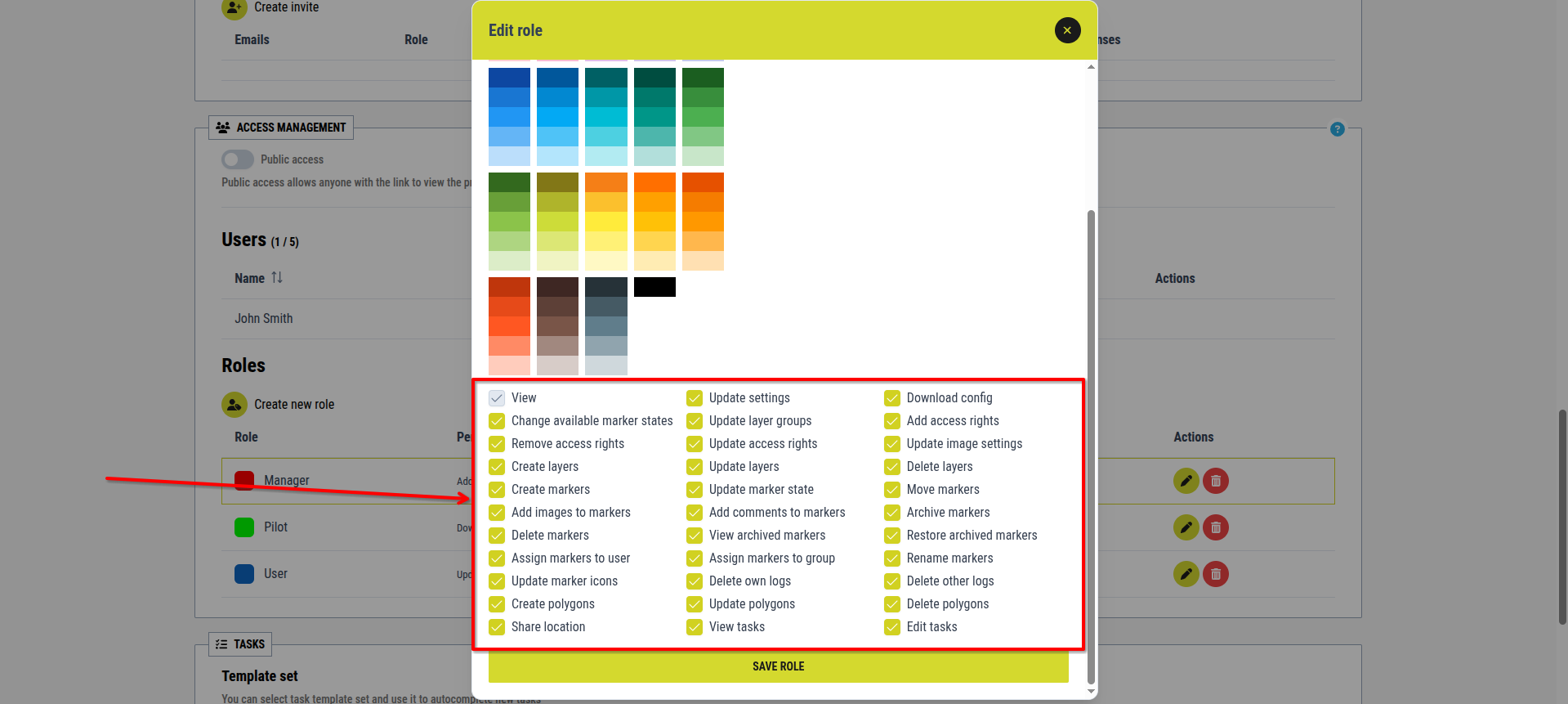
[Showcase of all the list of permissions inside the Access Management section of the project settings]
View
Allows users to view the project.
- Automatically enabled for all roles
- Cannot be disabled
Remove access rights
Allows users to remove permissions from roles in the Access Management section.
Create layers
Allows users to create layers on the project map.
Create markers
Allows users to create markers within the project.
Add images to markers
Allows users to upload images to a marker’s history log.
Delete markers
Allows users to delete any markers in the project.
Assign markers to user
Allows users to assign markers (and related tasks) to other users.
Update marker icons
Allows users to change the icon of any marker.
Create polygons
Allows users to create polygon markers.
Share location
Allows users to share their real-time location on the project map.
Update settings
Allows users to modify project settings.
Update layer groups
Allows users to modify layer groups.
Update access rights
Allows users to modify role permissions in the Access Management section.
Update layers
Allows users to modify layer settings.
Update marker state
Allows users to assign or change marker states.
Add comments to markers
Allows users to add comments to a marker’s history log.
View archived markers
Allows users to view archived markers.
Assign markers to group
Allows users to assign markers to resource groups.
Delete own logs
Allows users to delete their own entries in marker history logs.
Update polygons
Allows users to modify polygon settings.
View tasks
Allows users to view all tasks in the project, not only those assigned to them.
Download config
Allows users to download the project configuration.
Add access rights
Allows users to grant permissions to roles in the Access Management section.
Update image settings
Allows users to modify image-related settings within the project.
Delete layers
Allows users to delete layers.
Move markers
Allows users to move markers.
Archive markers
Allows users to archive markers.
Restore archived markers
Allows users to restore archived markers back to active status.
Rename markers
Allows users to rename markers.
Delete other logs
Allows users to delete other users’ entries in marker history logs.
Delete polygons
Allows users to delete polygons.
Edit tasks
Allows users to manage and modify tasks within the project.