General settings
Interacting with the first category, or clicking the first button in the project settings navigation bar, opens the General settings section.
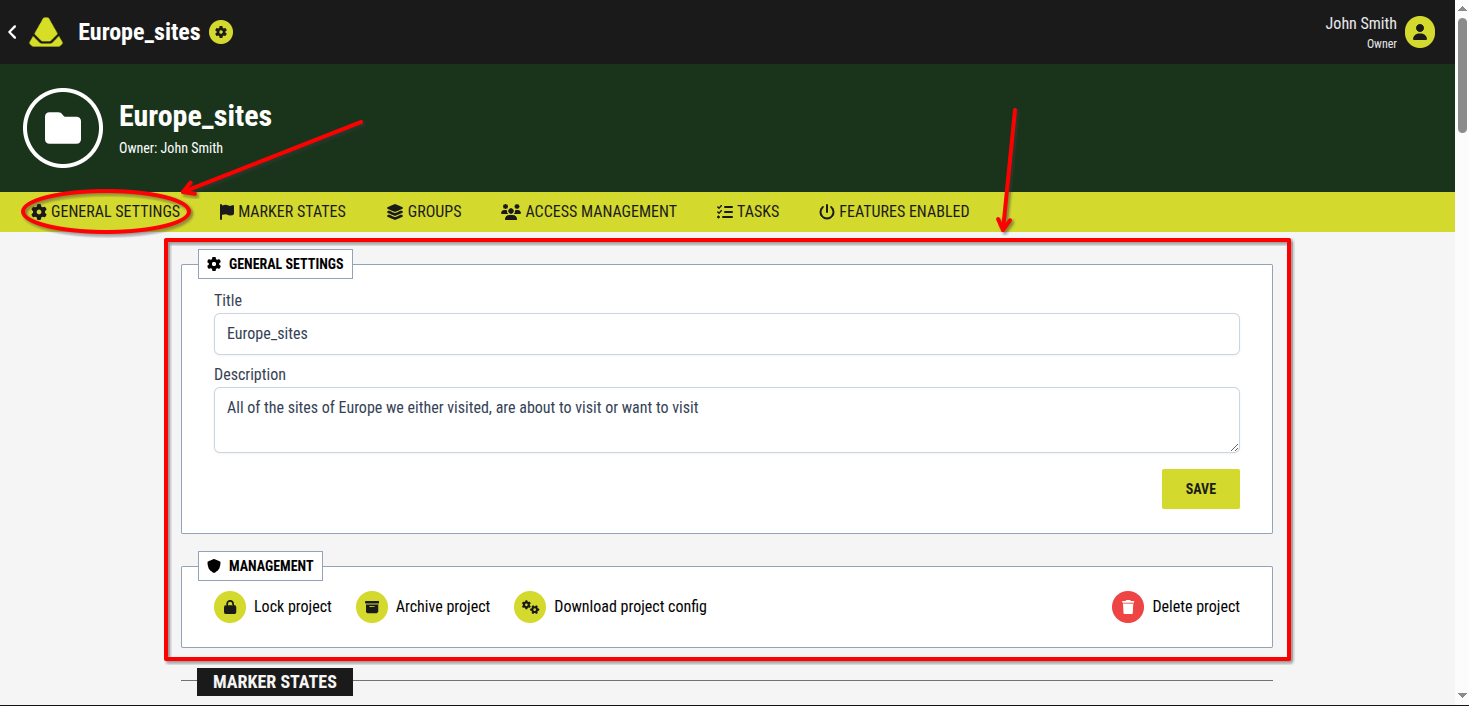
[Showcase of the General settings section of the project settings]
The General settings in the project settings allow management of the most common information about a project, as well as its basic administrative controls. This section is divided into two subsections:
1. General settings (same as the section name)
This subsection is used to manage the project’s name and description.
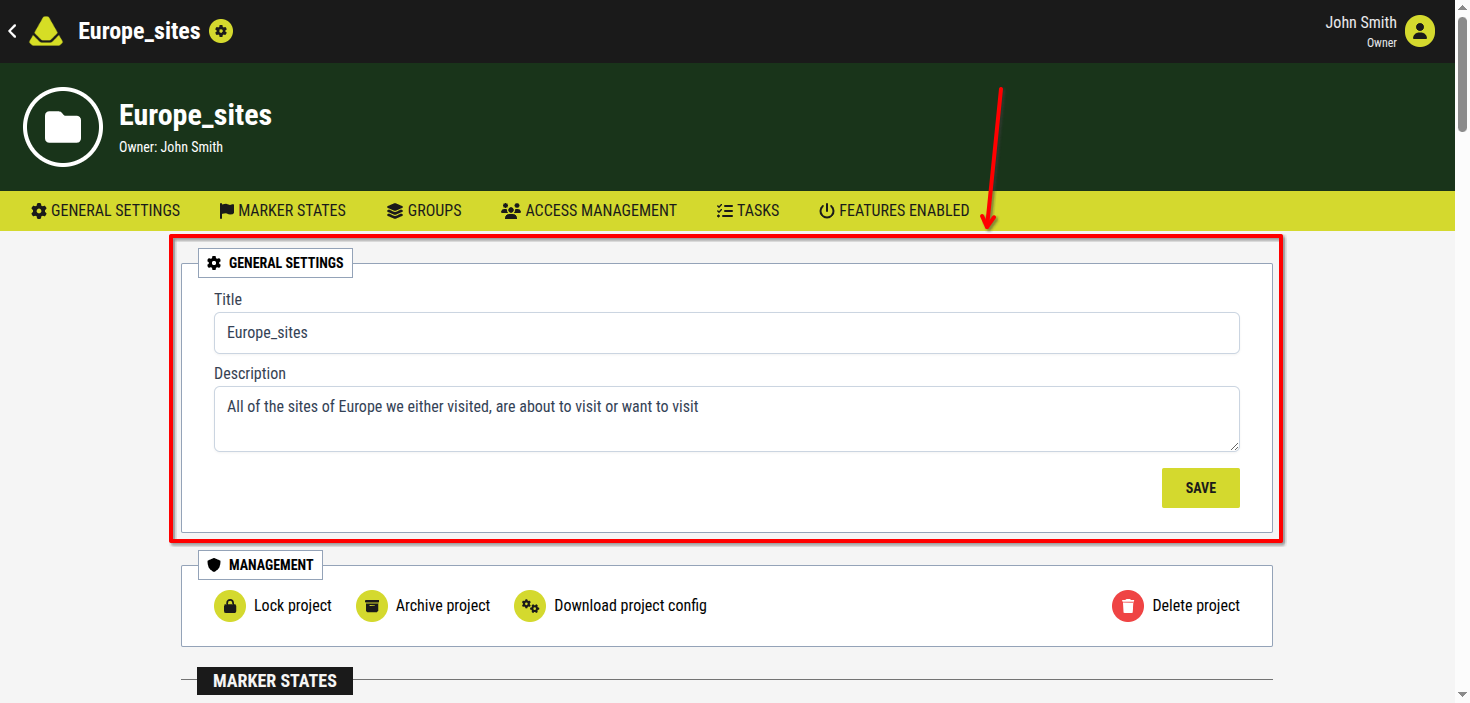
[Showcase of the General settings subsection of the General settings section of the project settings]
1.1. Title
This field displays the name assigned to the project during its creation.
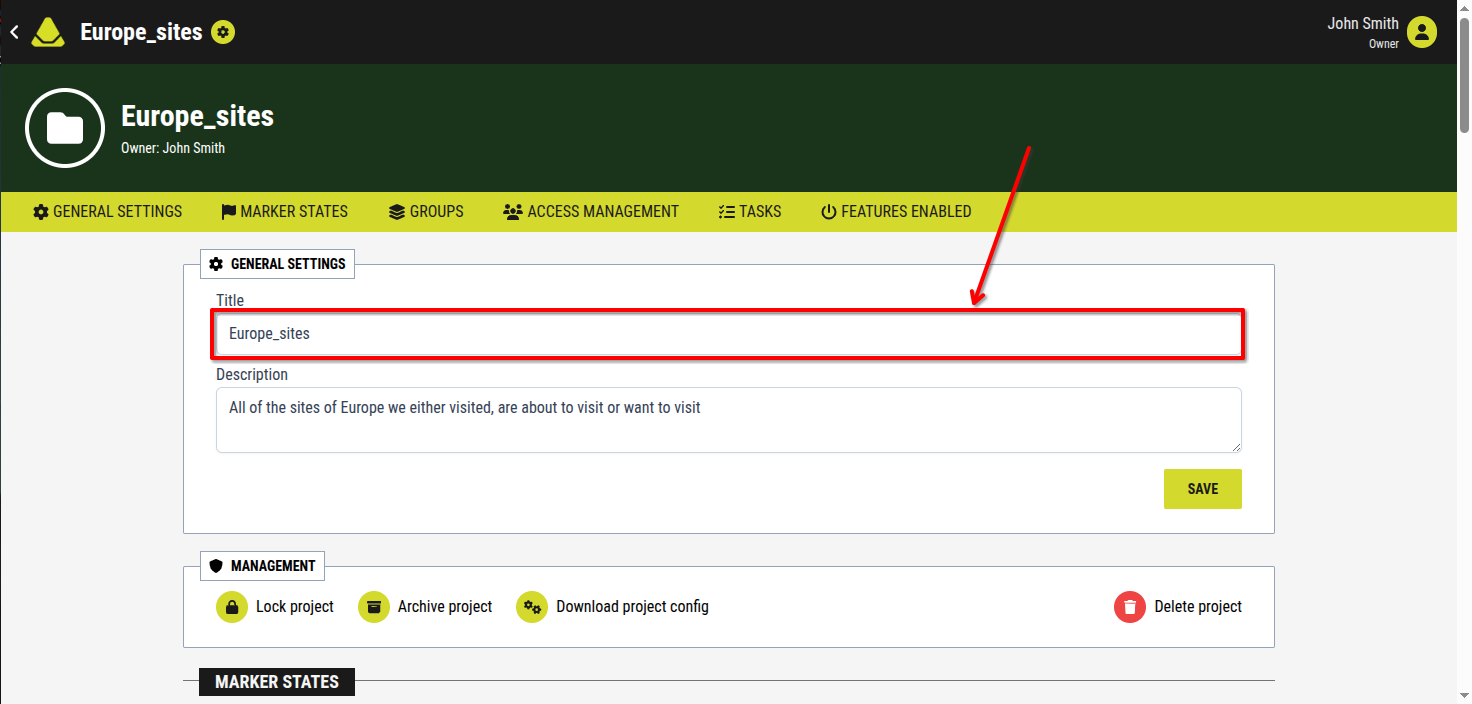
[An example of how the project title might look like]
Users with sufficient permissions can edit the title:
1. Click inside the text box
2. Modify the existing text as needed
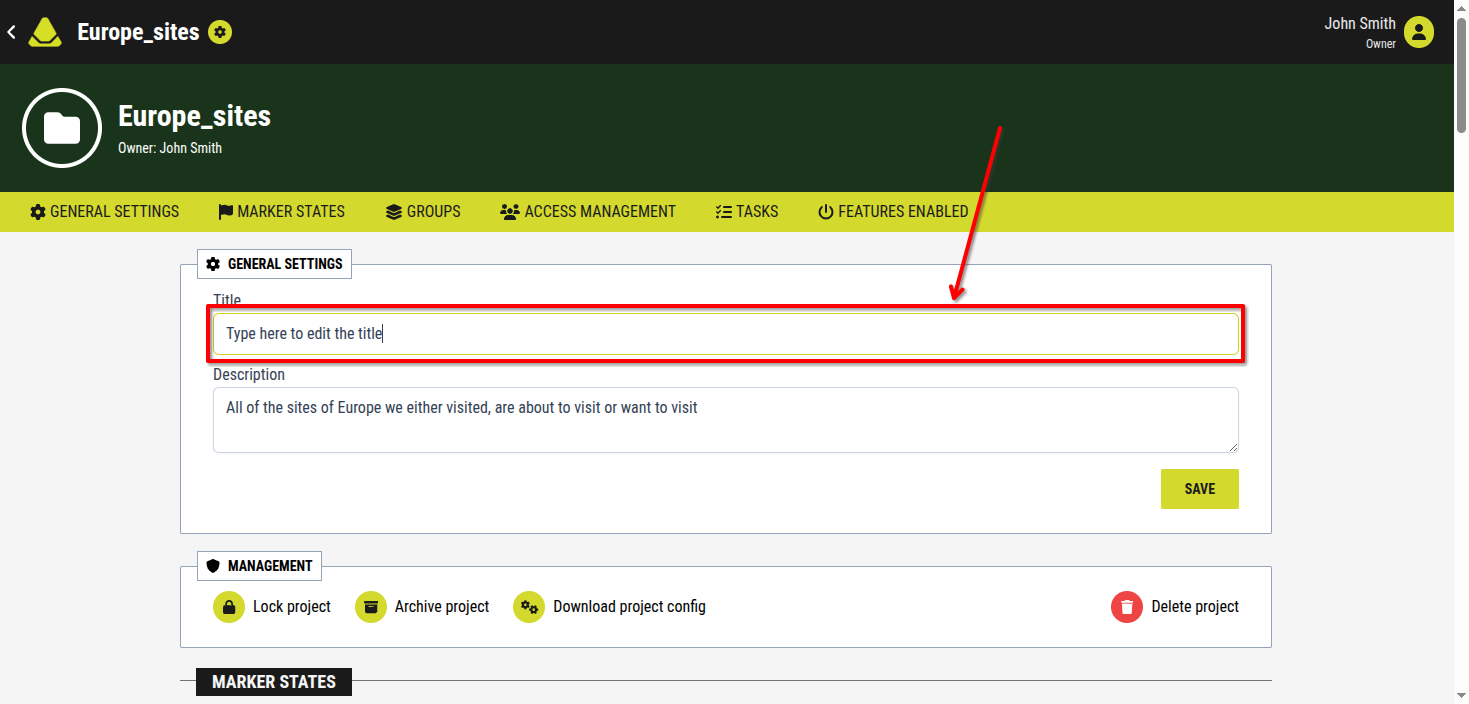
[Image for step 2]
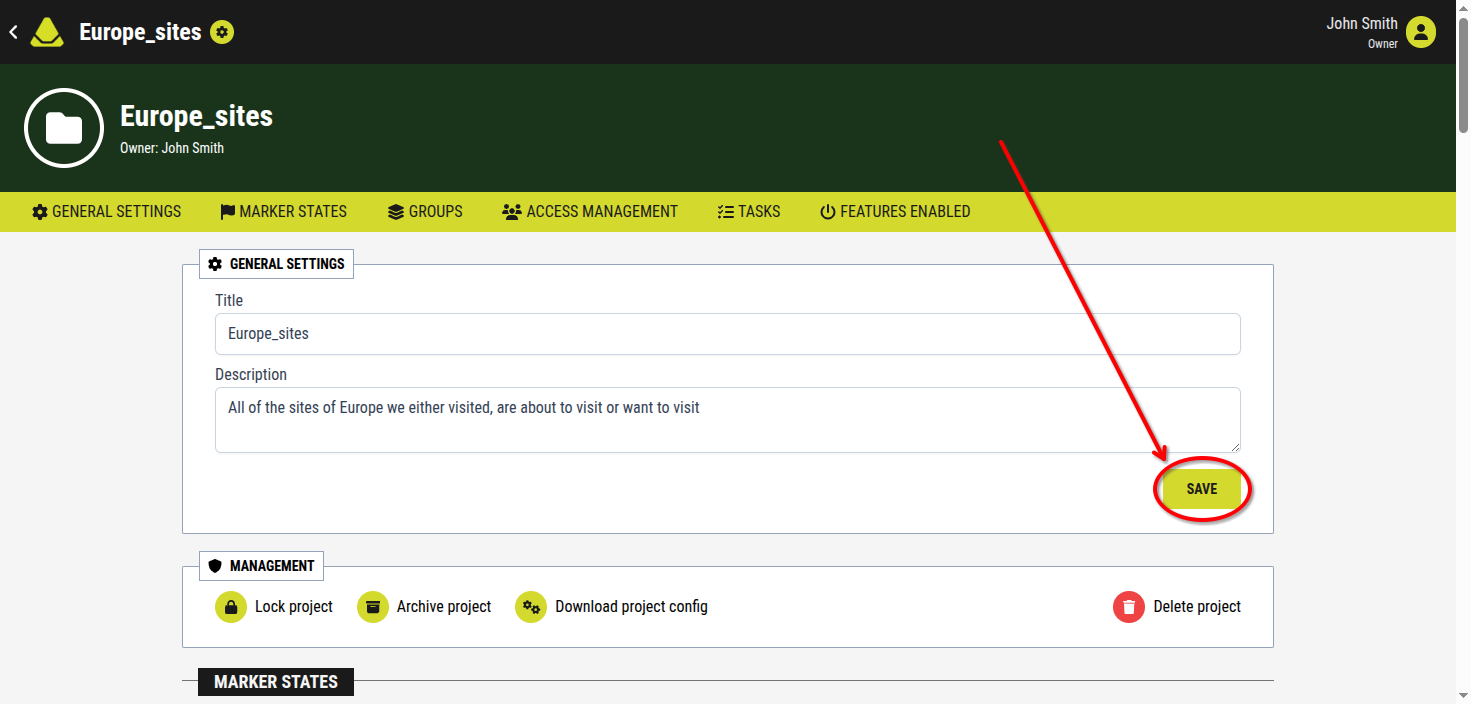
3. Click the green Save button in the General settings section
[Image for step 3]
1.2. Description
This field displays the project description, if one was provided during creation.
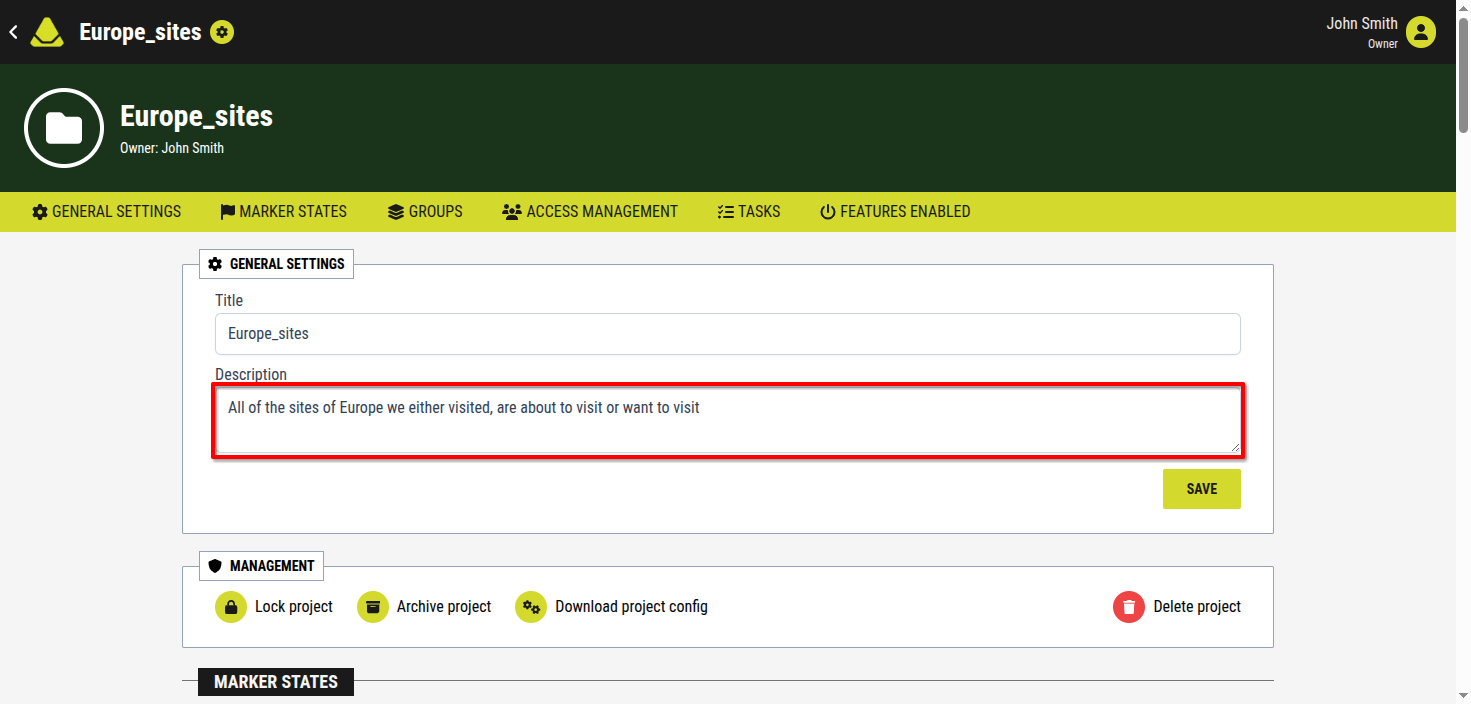
[An example of how the project description might look like]
Users with sufficient permissions can edit the description:
1. Click inside the text box
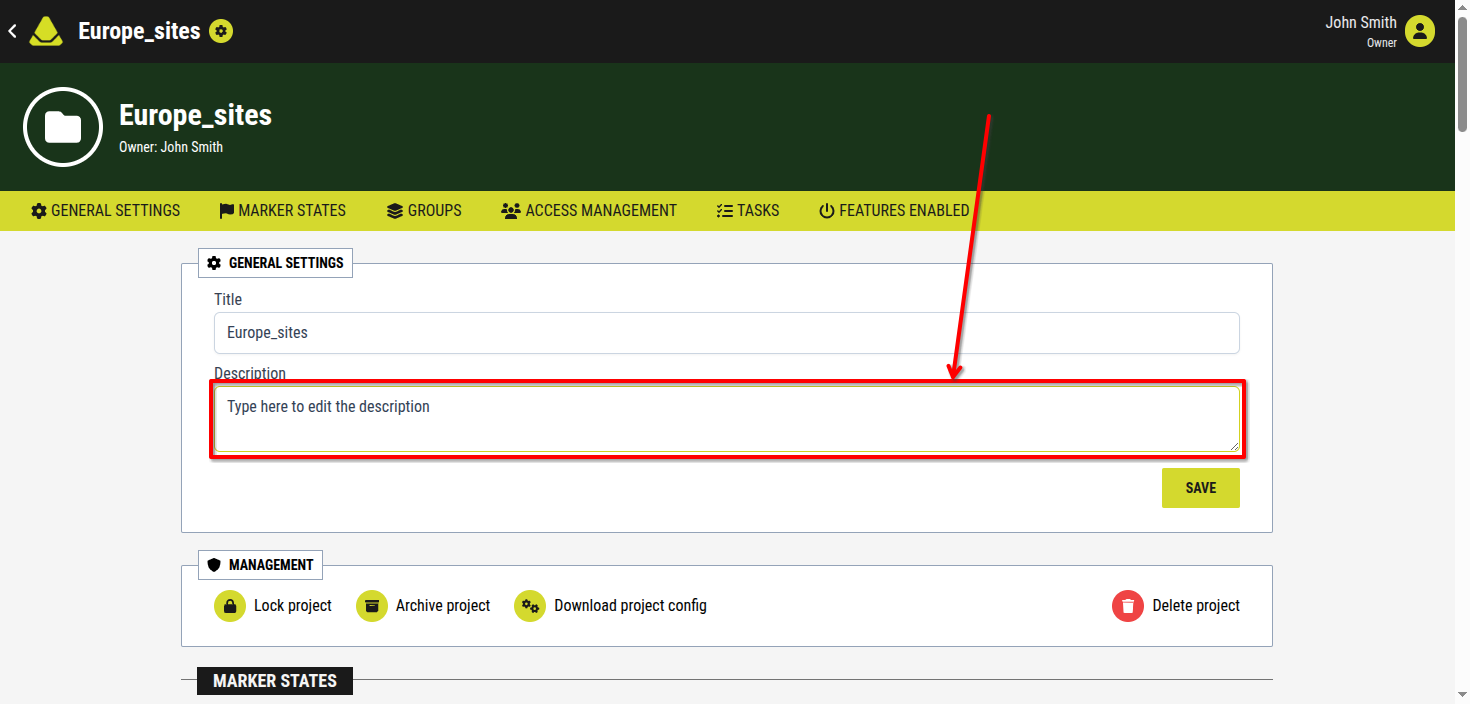
2. Modify the existing text as needed
[Image for step 2]
3. Click the green Save button in the General settings section
[Image for step 3]
2. Management
This subsection contains basic administrative controls for the project.
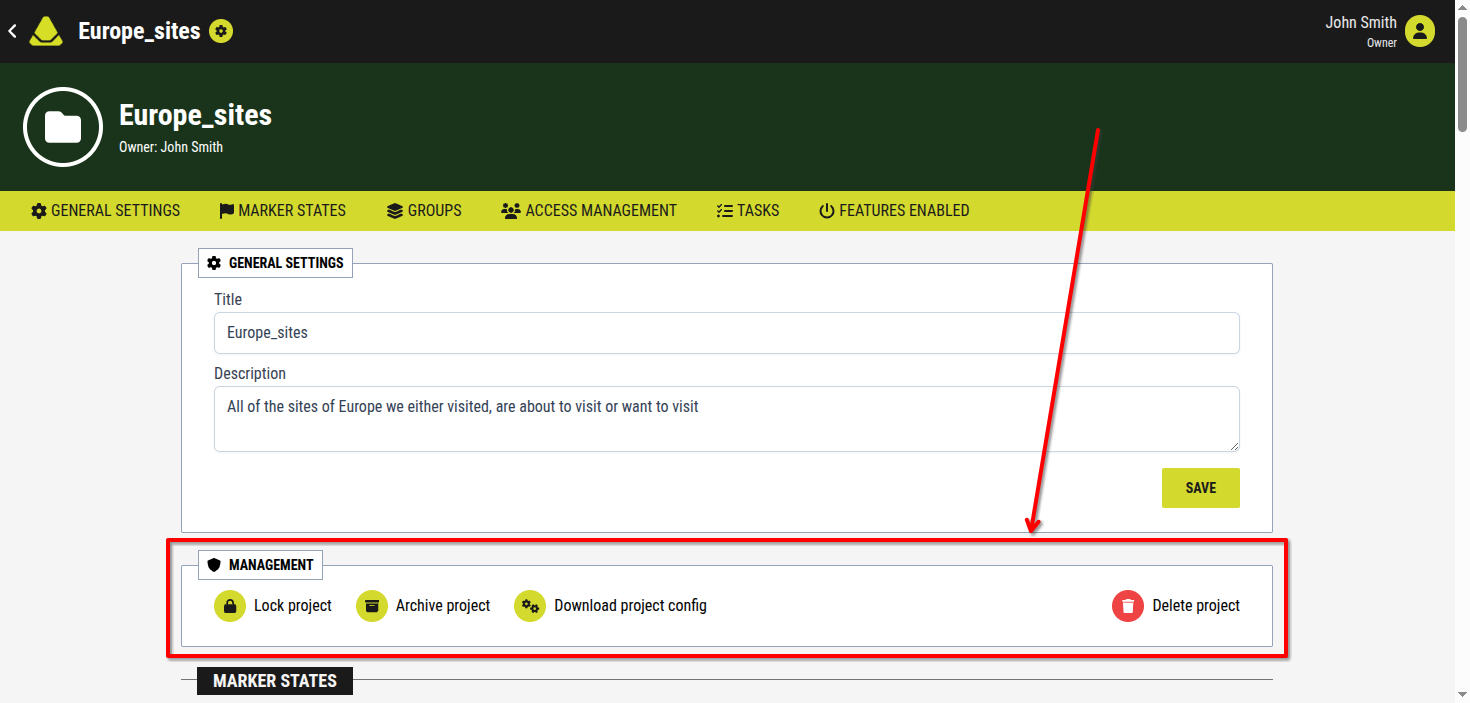
[Showcase of the Manage subsection of the General settings section of the project settings]
2.1. Lock / Unlock project
This option prevents or allows changes to the project.
To lock or unlock the project:
1. Press the Lock project / Unlock project button
2. The [project] chagnes to locked / unlocked based on its previous state
- When locked, no changes can be made to the project
- When unlocked, all actions are available as usual
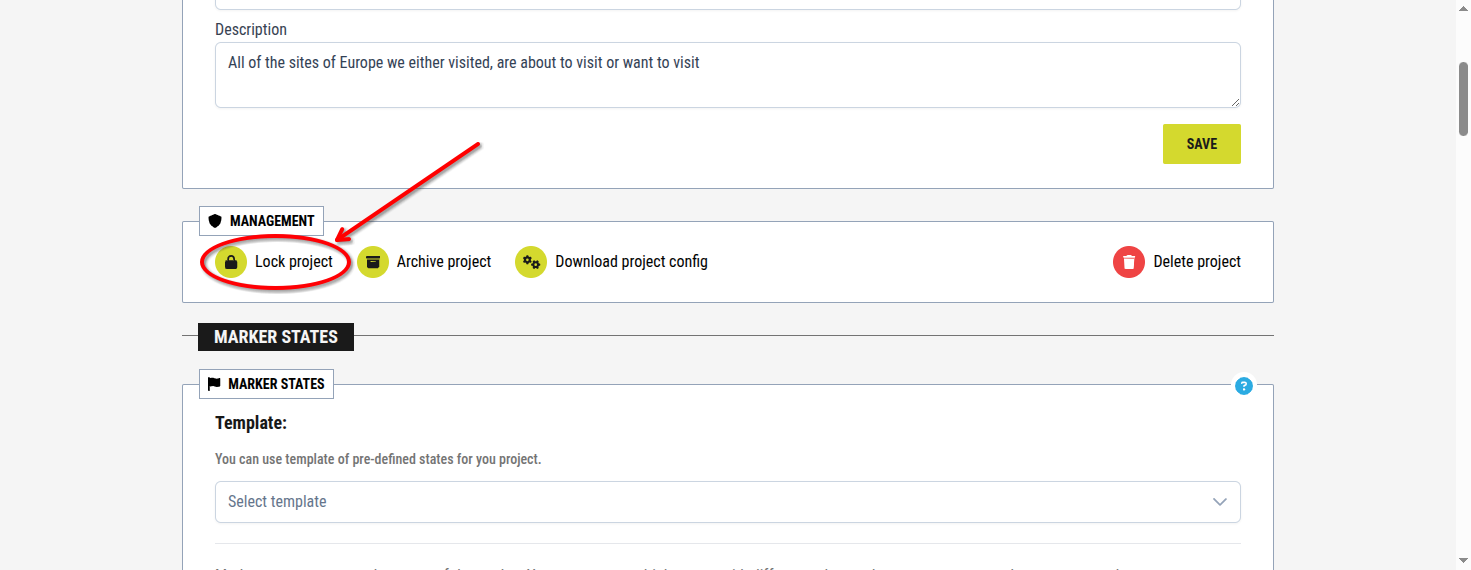
[Showcase of the Lock project / Unlock project button]
2.2. Archive / Unarchive project
This option controls whether the project is active or archived.
To archive or unarchive the project:
1. Press the Archive project / Unarchive project button
2. The project changes to the opposite state of existence
- When archived, the project appears in the archived projects list
- When unarchived, it returns to the active projects list
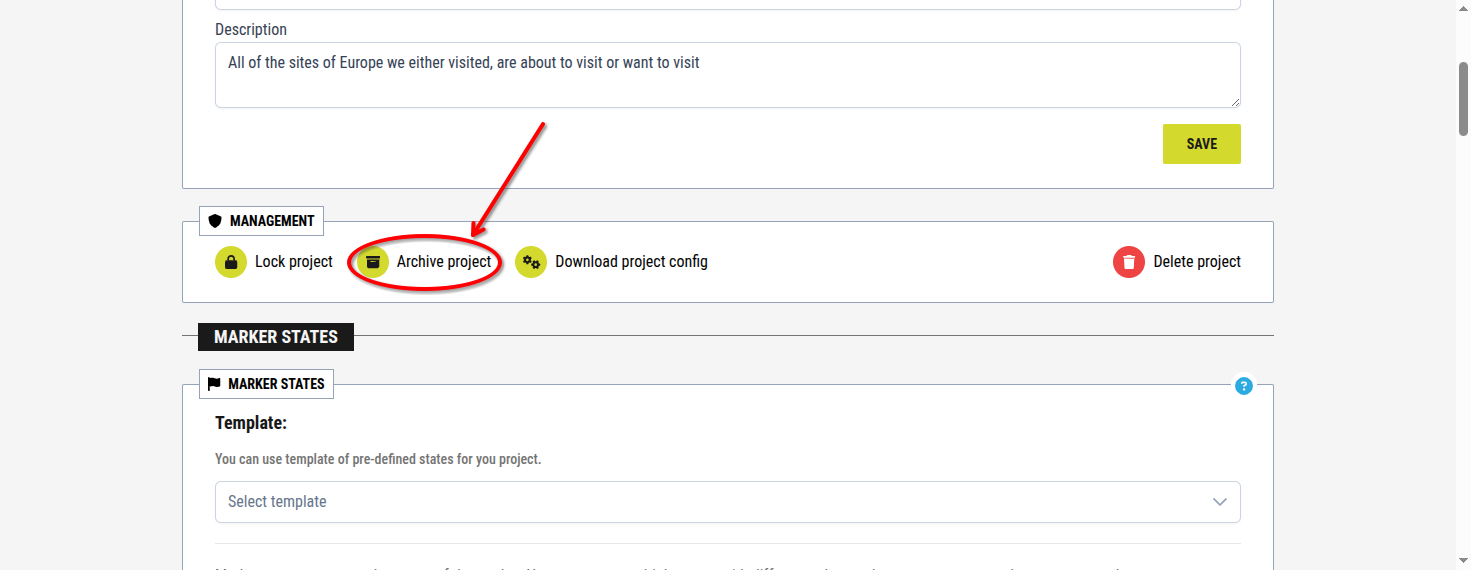
[Showcase of the Archive project / Unarchive project button]
2.3. Download project configuration
This option allows downloading the project configuration file.
To download the configuration:
1. Click the Download project config button
2. Select a destination in your system’s file explorer
3. Confirm the download
This action can be performed at any time and without limitation.
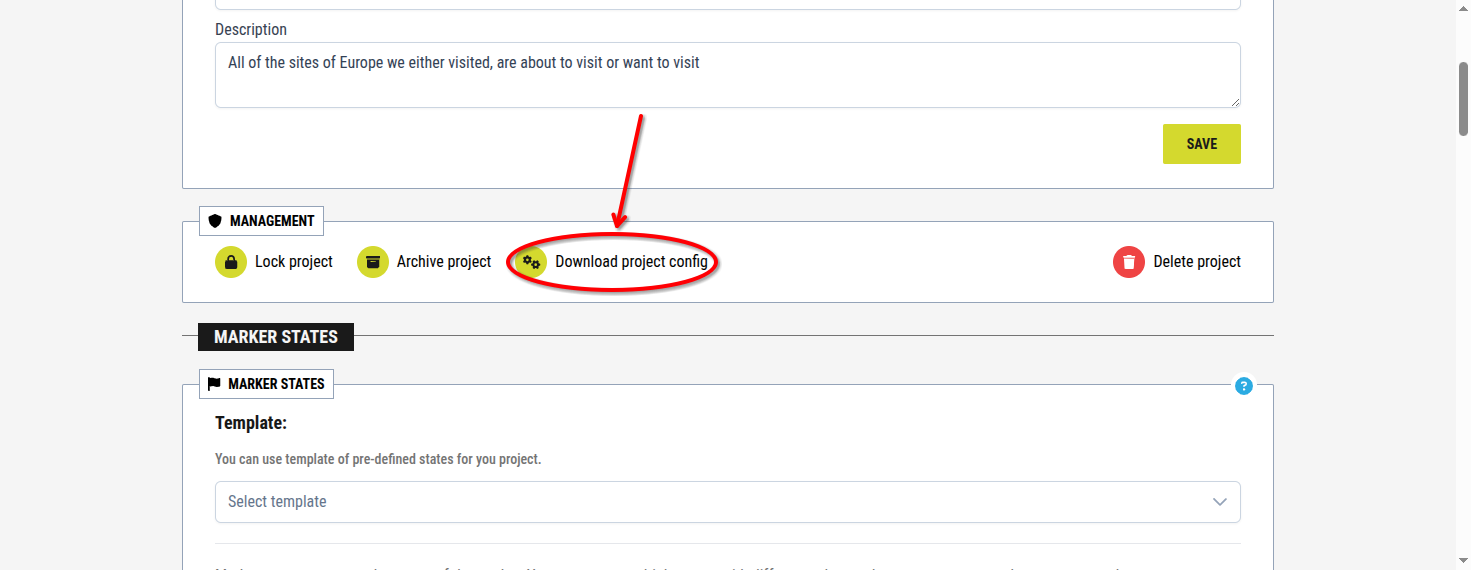
[Showcase of the Download project config button]
2.4. Delete project
This option permanently deletes the project.
To delete the project:
1. Click the Delete project button
2. Confirm the action in the system dialog
This action is permanent and can not be undone.
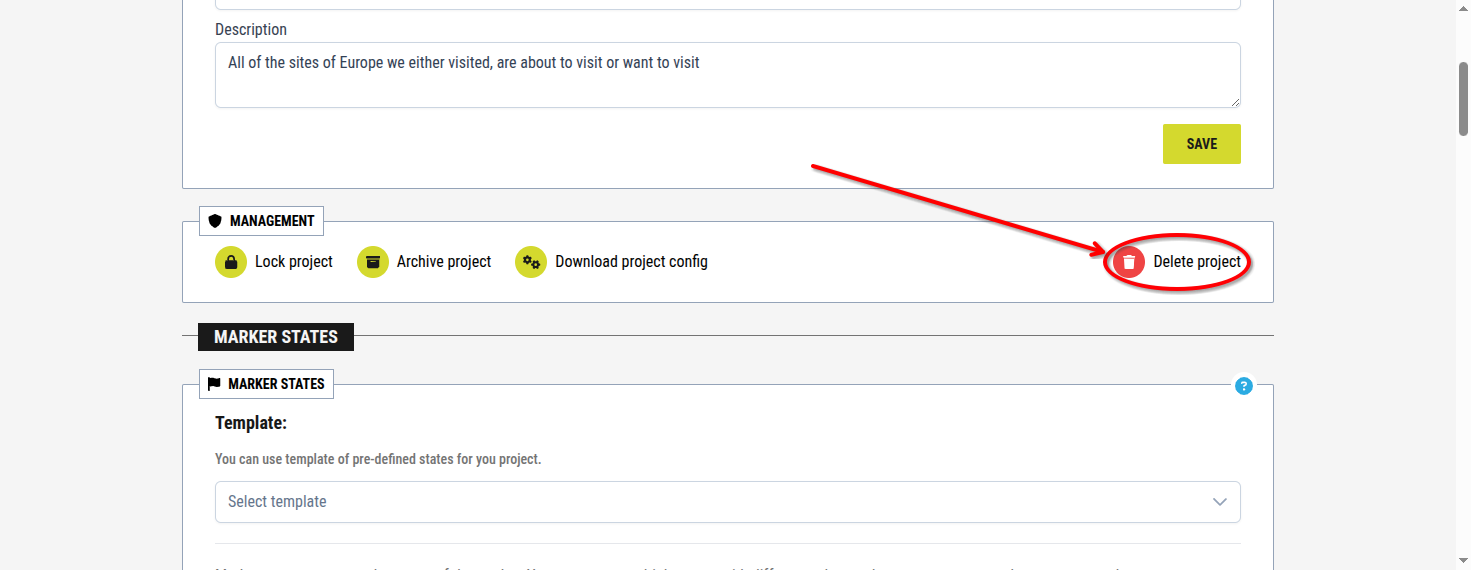
[Showcase of the Delete project button]