Tasks settings
Scrolling to the fifth category, or clicking the corresponding button in the project settings navigation bar, opens the Tasks section of the project settings.
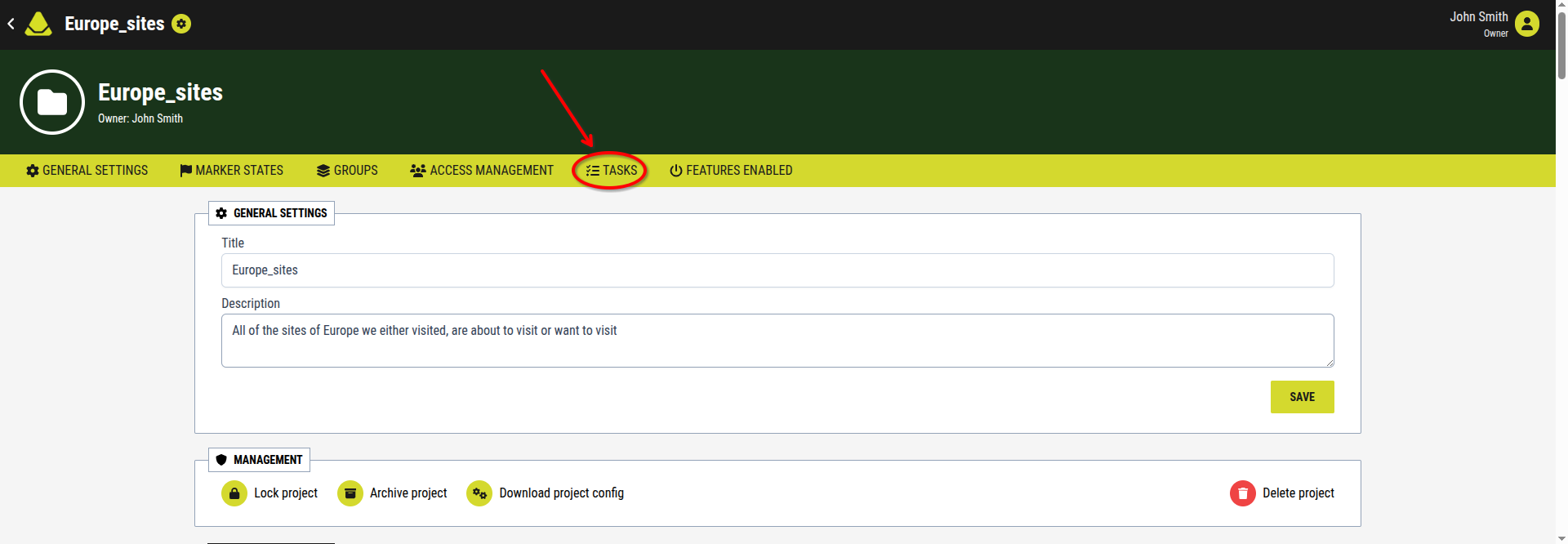
[Showcase of the Tasks category button in the project settings]
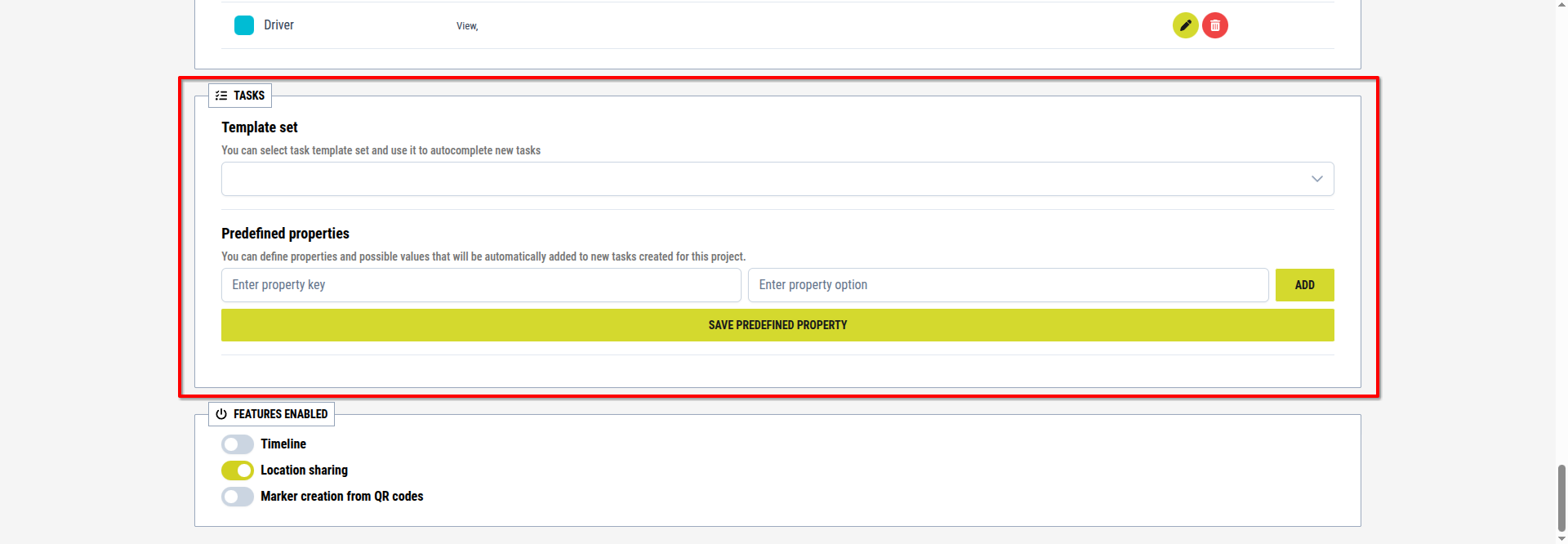
[Showcase of the Tasks page in the project settings]
This section is used to manage task template sets and predefined properties for tasks. Because of this, it is divided into two sub-sections:
1. Task template sets
Task template sets are used to simplify and speed up the process of assigning tasks.
They allow you to predefine certain task settings, so that every newly created task automatically includes these settings.
For example, if you want all newly assigned tasks to have high priority, you can use a template set that already includes this configuration.
To select a task template set:
1. Click the dropdown menu
2. Select one of the available template sets
The selected template is applied immediately. All tasks created afterwards will use the predefined settings from the selected template.
2. Predefined task properties
By default, tasks have a limited number of properties. This section allows you to add custom (predefined) properties that will be available for all tasks within the project.
Once created, these properties appear the same way as default task properties during task creation or editing.
2.1. Add a predefined property
To create a predefined task property:
1. Enter a name in the "Enter property key" textbox
2. (Optional) Add selectable options:
- Type an option into the "Enter property option" textbox
- Press the ENTER key on your keyboard
- Repeat for additional options if needed
3. Click the Save predefined property button
2.2. Predefined property list
All predefined properties are displayed in a list below.
Each row represents one property and contains:
- The property name
- A Delete (trash) button
2.3. Delete a predefined property
To remove a predefined property: