Features enabled
Scrolling to the last category, or clicking the corresponding button in the project settings navigation bar, opens the Features enabled section.
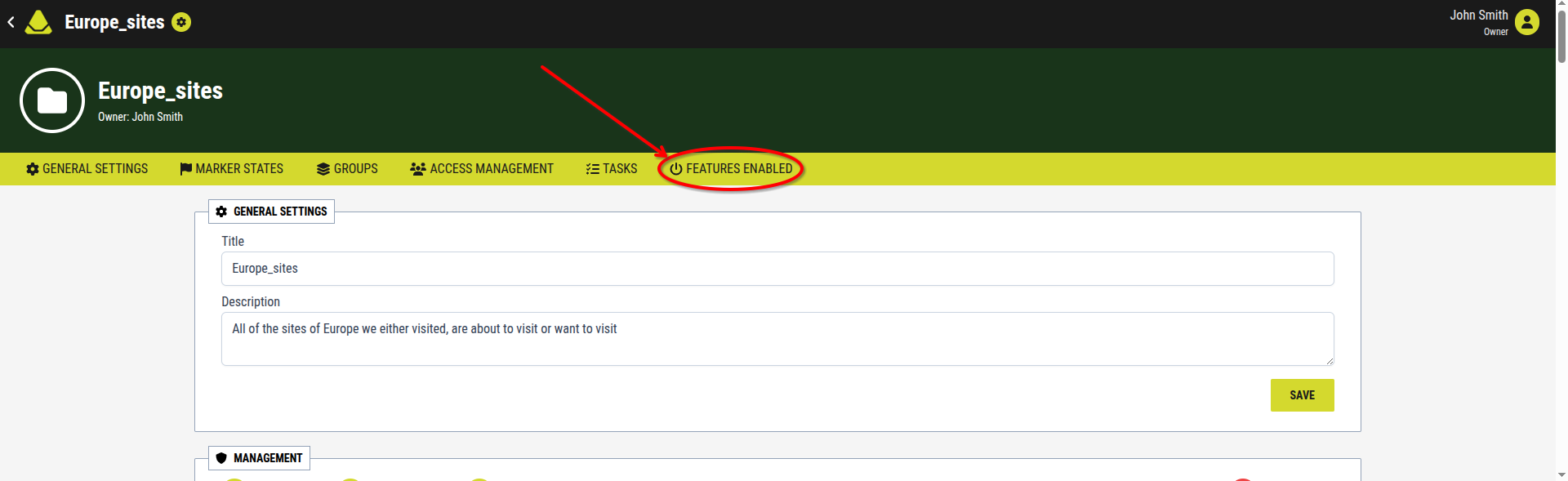
[Showcase of the Features enabled category button in the project settings]

[Showcase of the Features enabled page in the project settings]
This section is used to manage additional features within the project. These include:
The settings in this section are simple and consistent. Each feature has its own switch with two possible states:
- OFF
- The switch is positioned to the left
- The background is grey
- The feature is disabled and not available in the project

[Showcase of a switch that has been turned OFF]
- ON
- The switch is positioned to the right
- The background is green
- The feature is enabled and available in the project

[Showcase of a switch that has been turned ON]
Changing a switch immediately enables or disables the selected feature for the entire project.