Projects tab
Clicking the first tab in the global navigation bar on the dashboard opens the "Projects" tab. The main area of this tab displays a list of all the projects that the user is a part of, including the ones that they have created. Tools for interacting with this project list are displayed above the list.
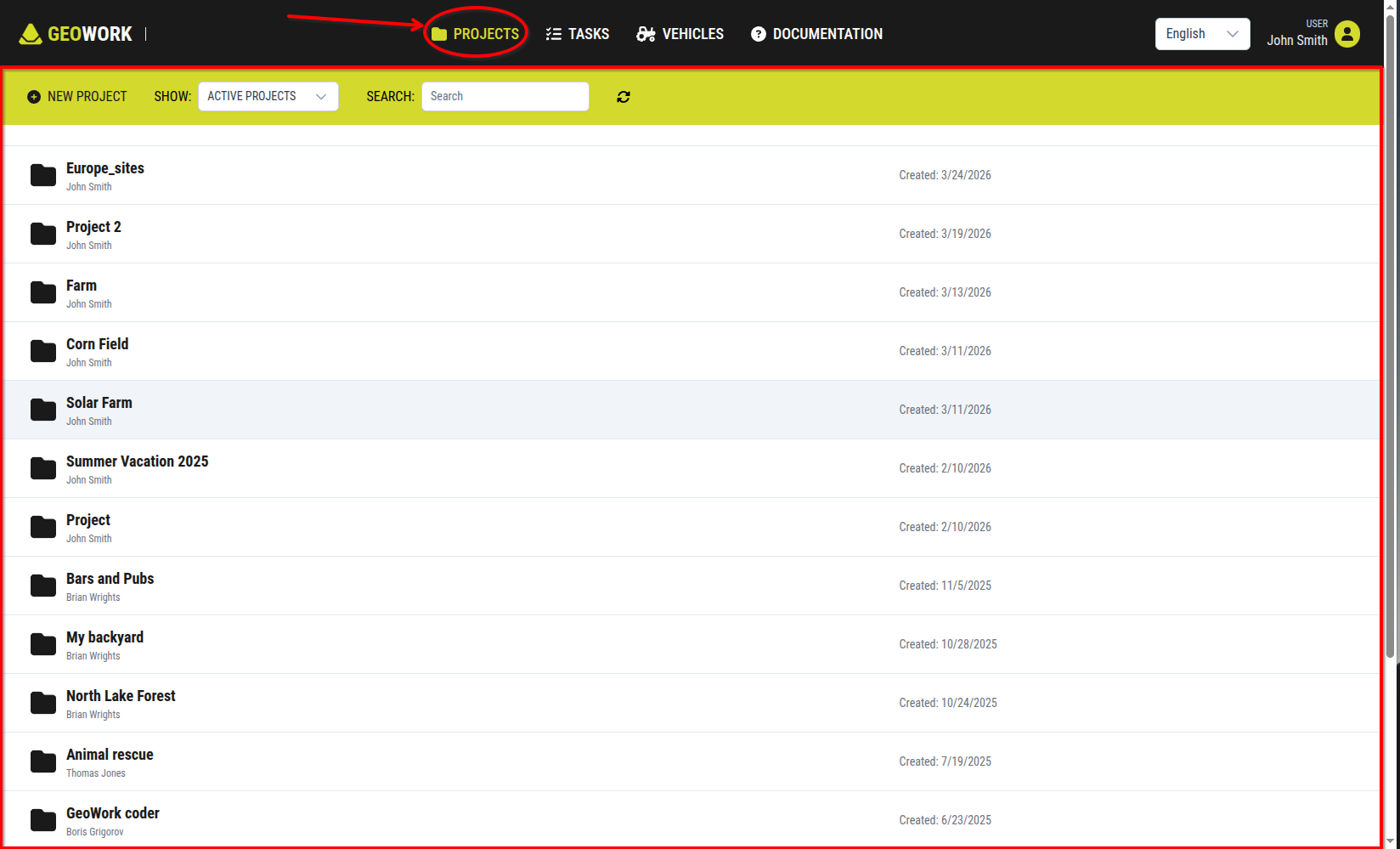
[Showcase of the project tab of the dashboard]
Tools section
Directly below the global navigation bar, a tools section spans the full width of the display. This section contains controls for interacting with the project list and creating new project.
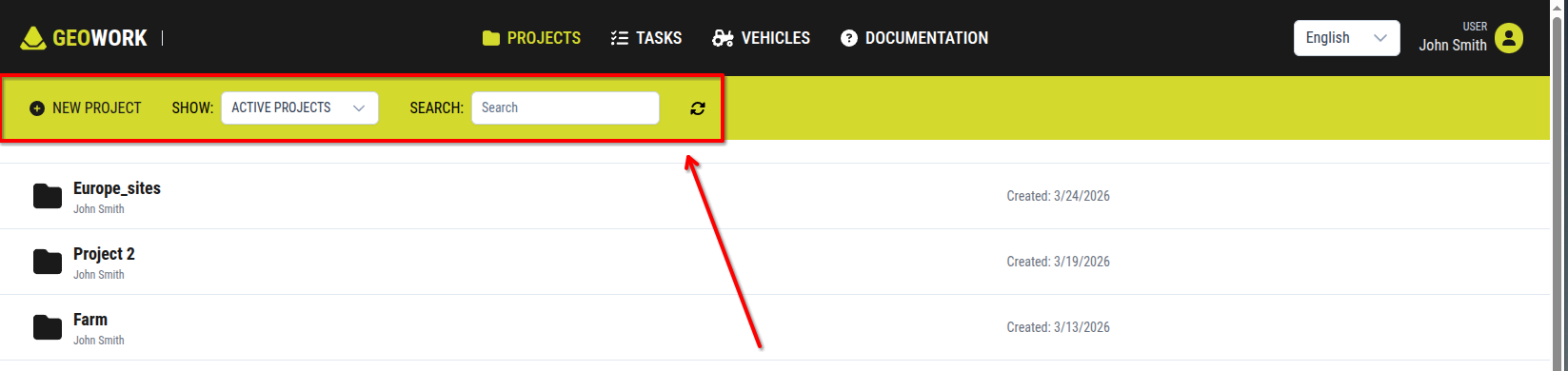
[Showcase of the tools section of the project tab in the dashboard]
It consists of the following elements:
1. "New Project" button
This button is available only to licensed users. Pressing it starts the proces of creating a project.
2. "Show:" button
This button allows switching between different project lists.
There are two options:
2.1. Active projects
- displays the projects that are currently active.
2.2. Archived projects
- displays the projects that are currently archived.
"Search" button
This button allows users to search for a project in the project list by entering the project name.
"Refresh" button
This button refreshes the displayed project list in case a new project has been created after the dashboard was opened and is therefore not yet displayed.
Project list
Below the tools section, a list of all projects that the logged-in user is a member of is displayed. Each entry in the list contains:
- the project name displayed in bold
- the project owner displayed below the name
- the project creation date displayed on the right side of the entry
Clicking on a project in the project list opens up the project.
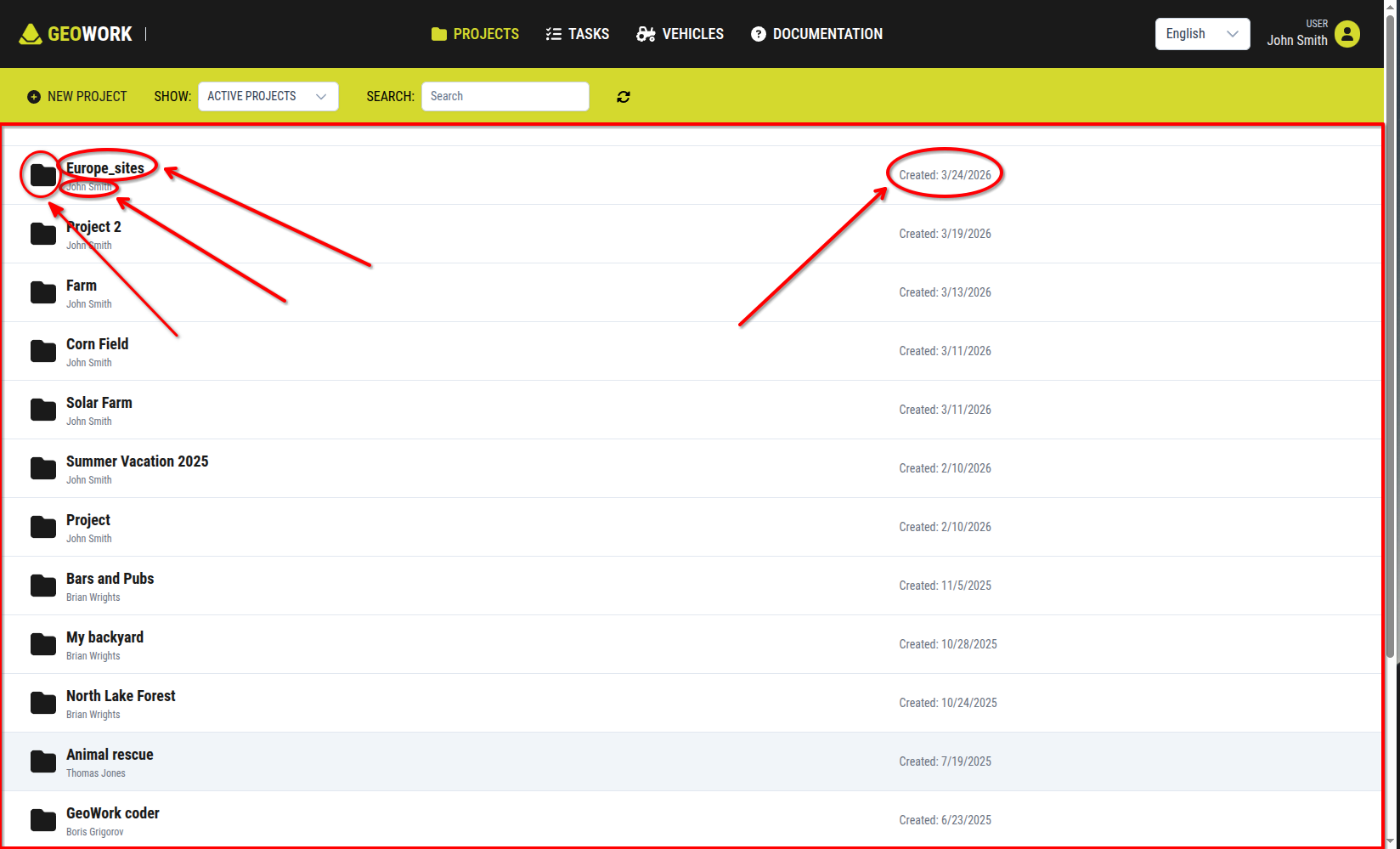
[An example of how the project list in the project tab of the dashboard may look like]