Project Info
In the Project Functions sidebar, the first button, identified by a folder icon, opens the Project Info panel (which is open by default when a project is opened in the desktop layout).
Within this panel, you can modify the map / Base Layer, invite users to the project and activate the location tracking process.
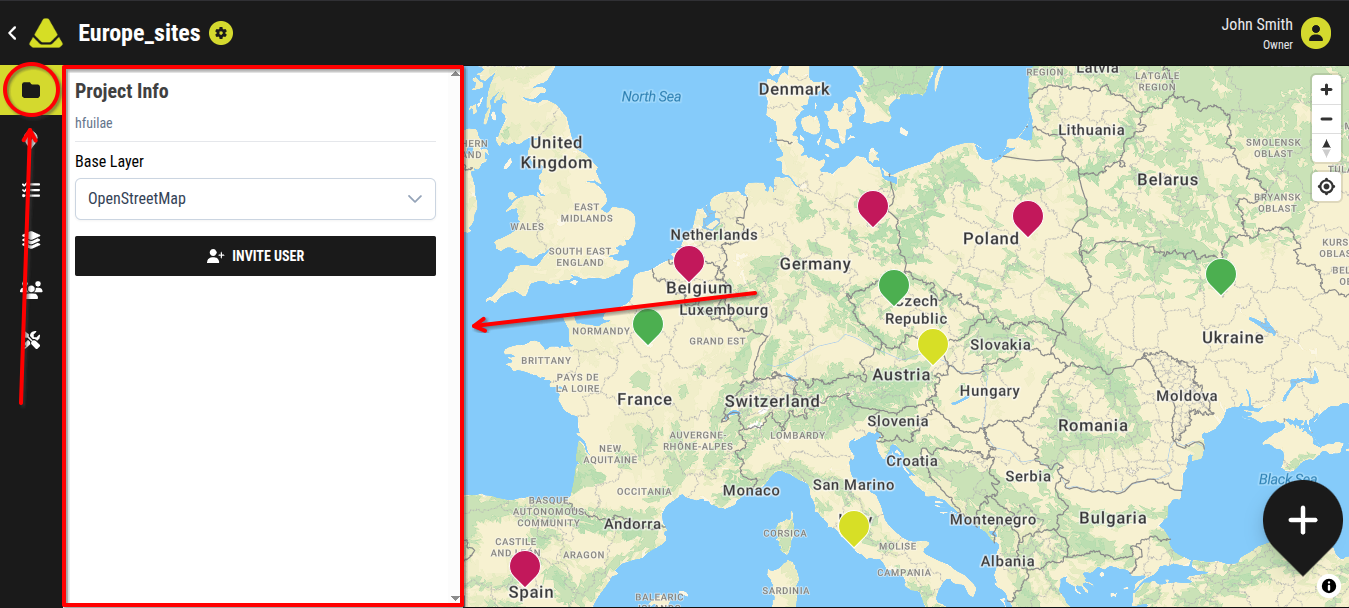
[Showcase of the Project info tab of the Project Functions sidebar]
Base Layer
Under the Base Layer section, selecting the corresponding dropdown menu displays a list of two available map styles:
- OpenStreetMap (visit the OpenStreetMap website to learn more)
- Aerial
Choosing one of these options changes the visual appearance of the map within the project.
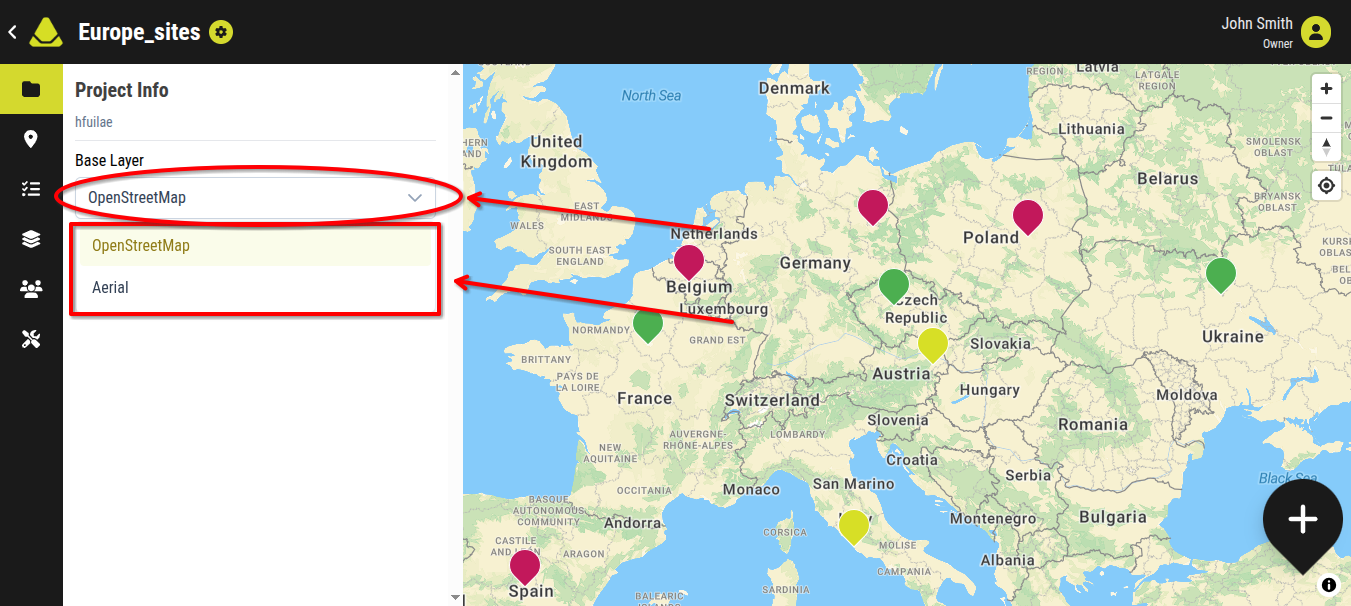
[Showcase of the dropdown options of the map / Base Layer]
Inviting Users
The “Invite User” button allows you to add new users to the project.
When selected, a dialog window opens prompting you to choose the role to be assigned to the invited user.
After selecting a role, an invitation URL is generated. You can share this link by clicking the "Copy Invite URL" button and pasting the URL into a message.
On mobile devices, clicking on the "Share URL" button opens the device’s native tracking interface, allowing you to choose the application and recipient.
A QR code is also displayed below these options. When scanned, it functions identically to the generated invitation link and grants access according to the assigned role.
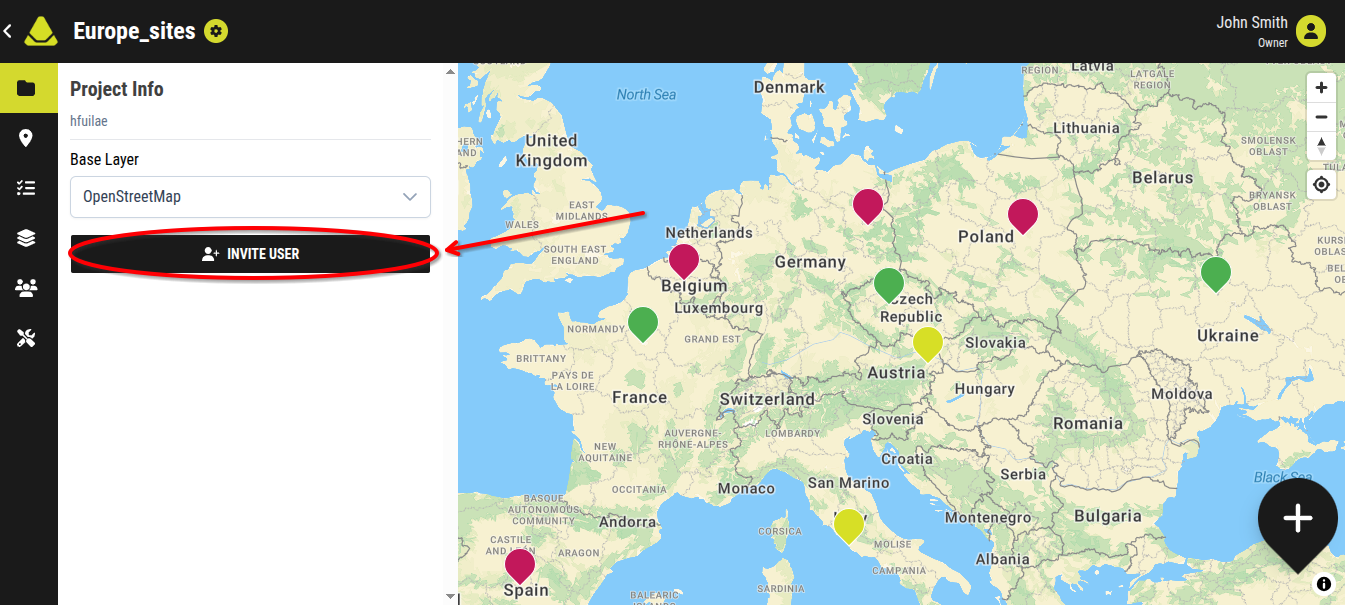
[Showcase of the Invite User button]
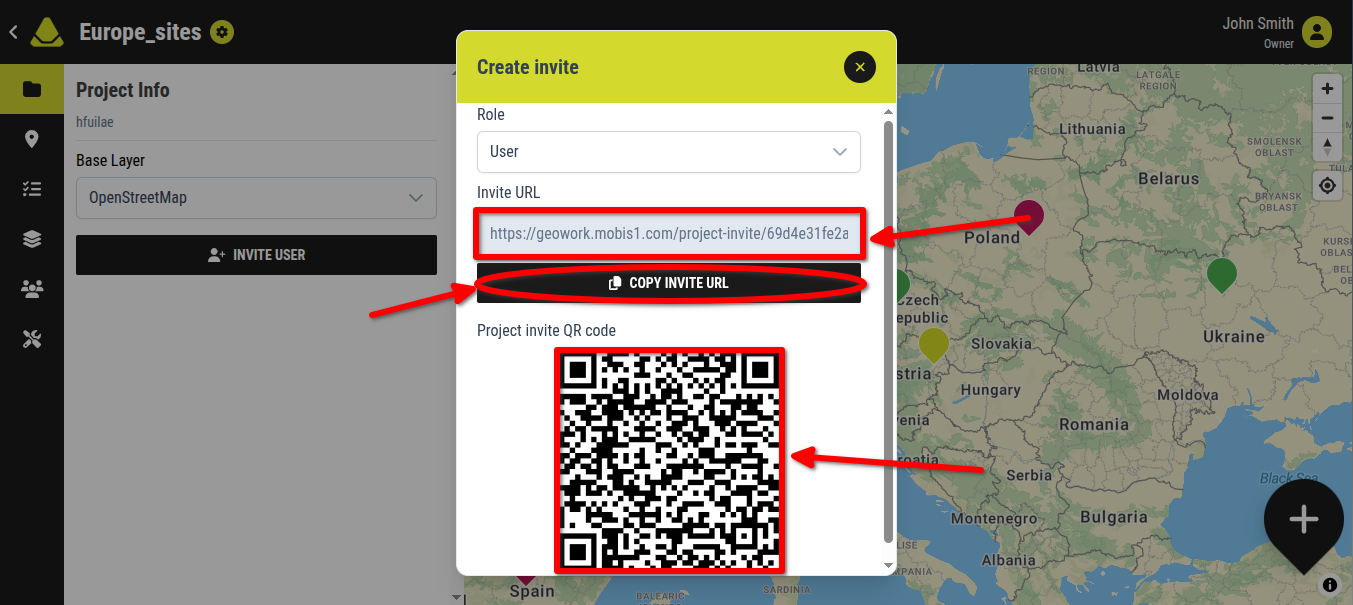
[Showcase of the invite interface]
Location tracking
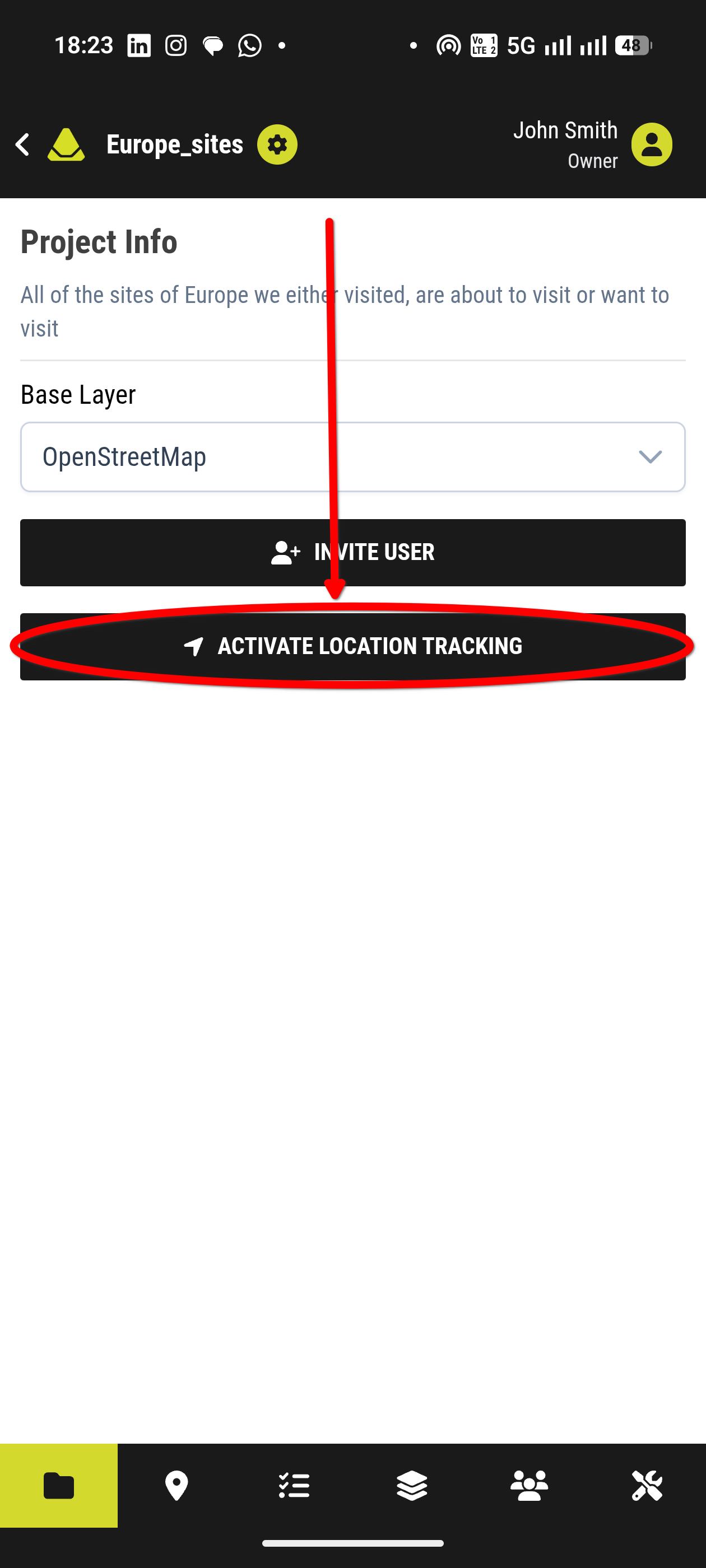
If Location tracking is enabled in the project settings, an additional button may appear in this tab.
This button allows you to share your device’s location on the map in real time. You can also choose to record your movement and save it into the location history log sessions.
To activate location tracking:
1. Press the "Activate location tracking" button
[Image for step 1]
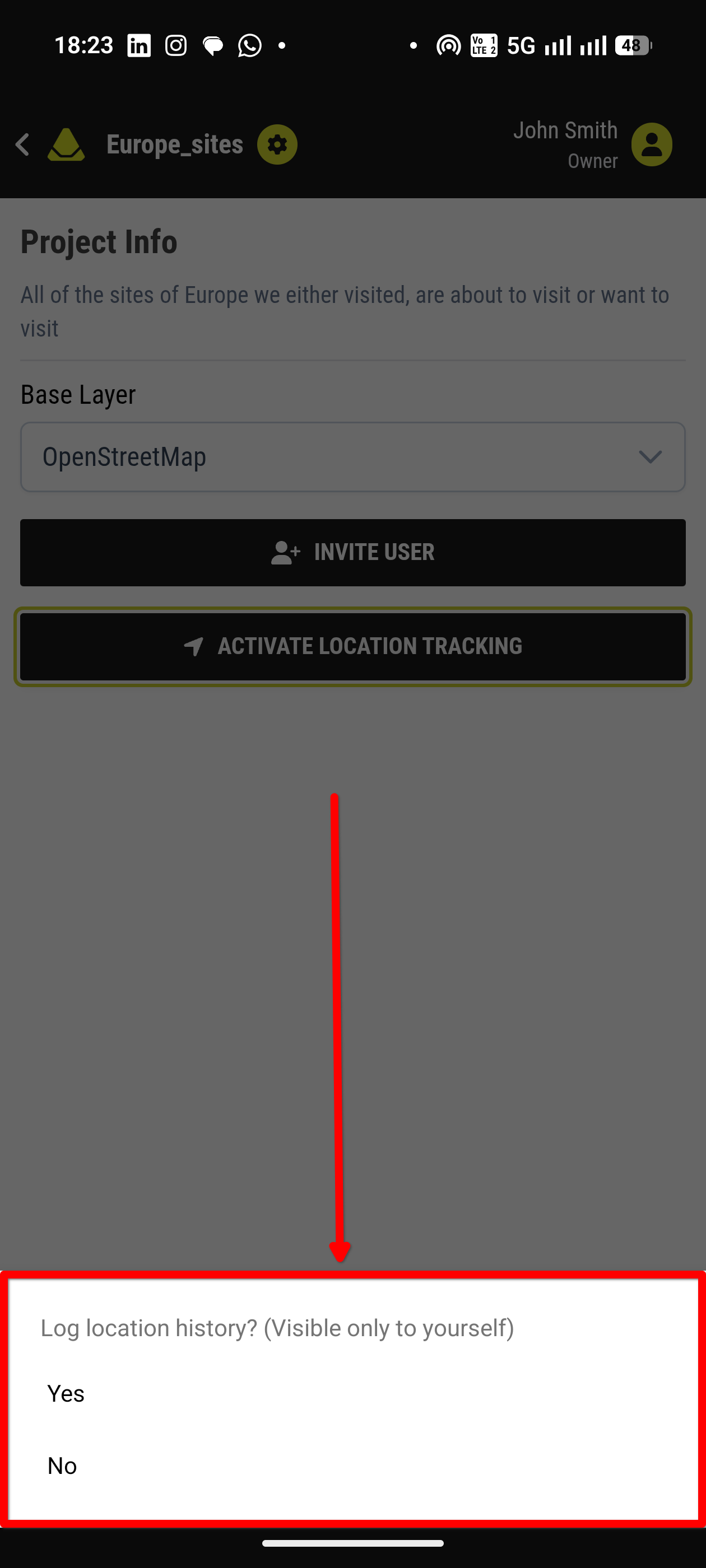
2. Choose whether you want your movement path to be saved in the location history log sessions by clicking yes or no in the pop-up
[Image for step 2]
3. Your location is now shared on the map (and your path is recorded if selected)
To deactivate location tracking:
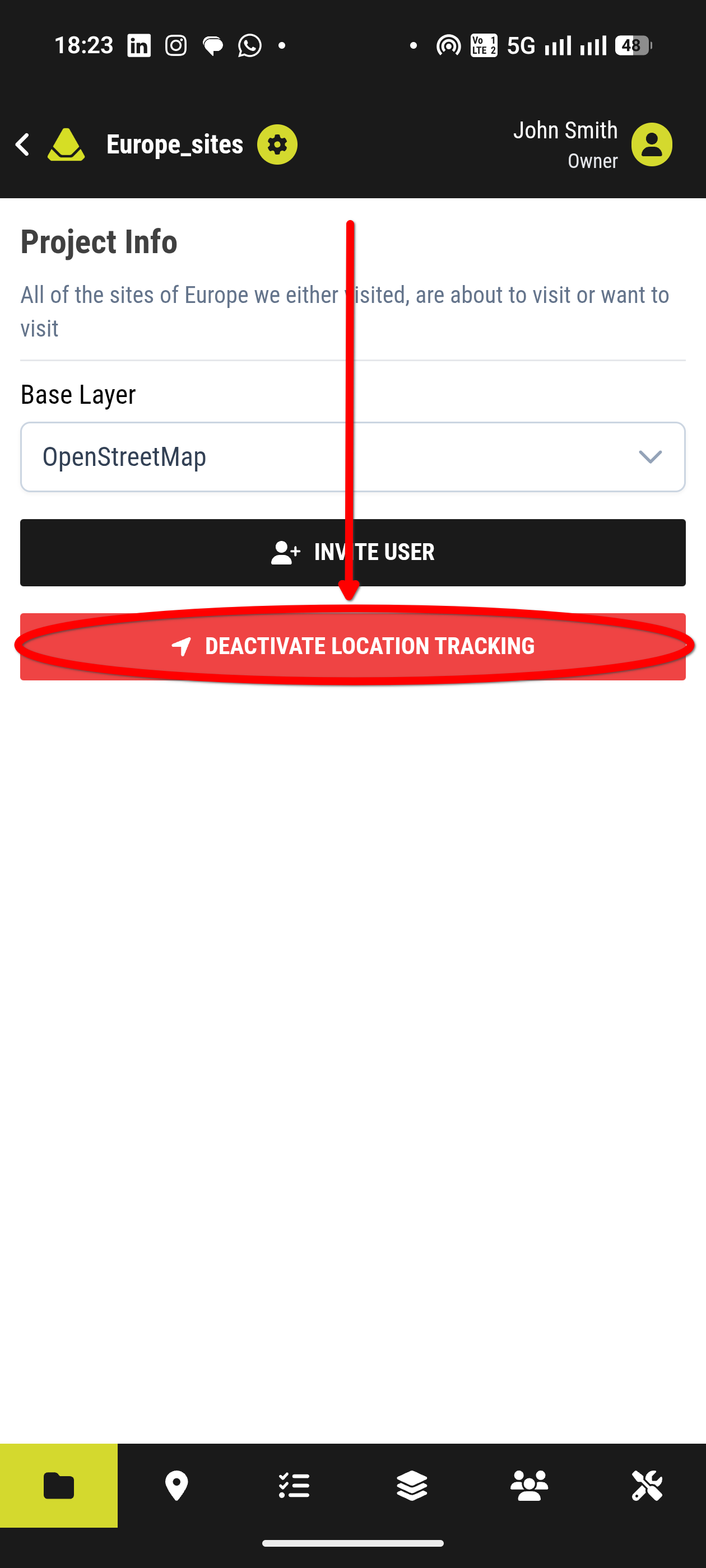
1. Press the "Deactivate location tracking" button
[Image for step 1]