Members
Selecting the fifth button in the Project Functions sidebar opens the Members tab.
The Members tab displays a list of all users currently part of the project. Its main purpose is to provide an overview of members and allow quick interaction with them.
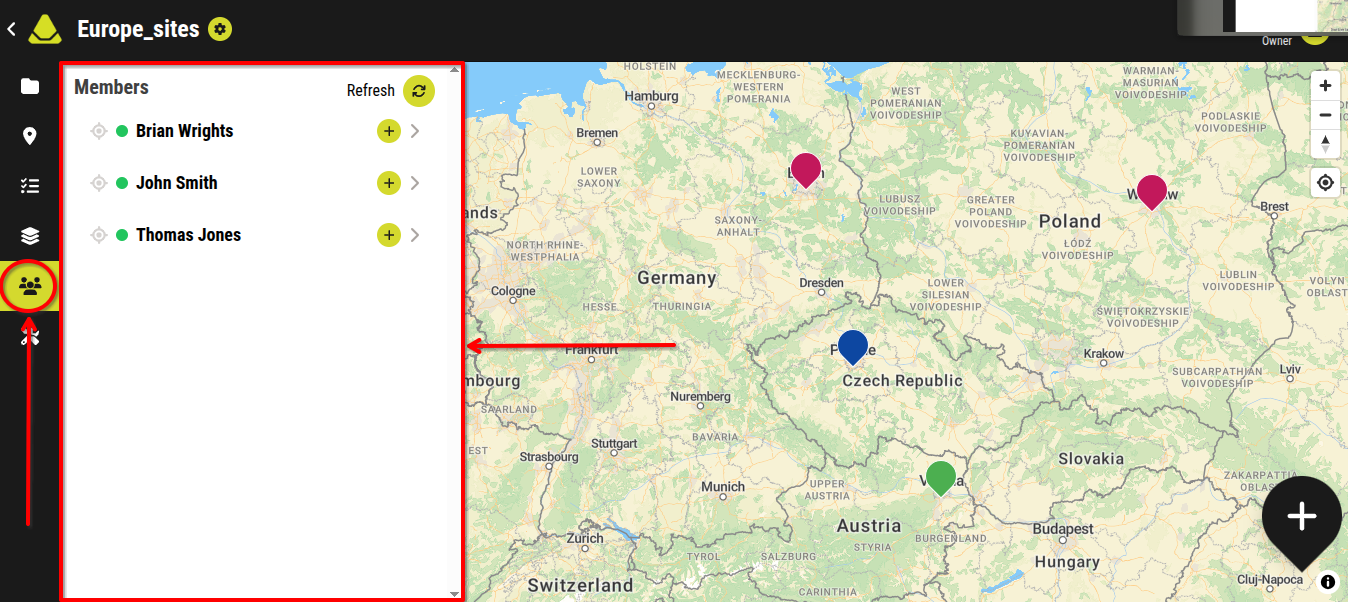
[Showcase of the members tab of the Project Functions sidebar]
Members list
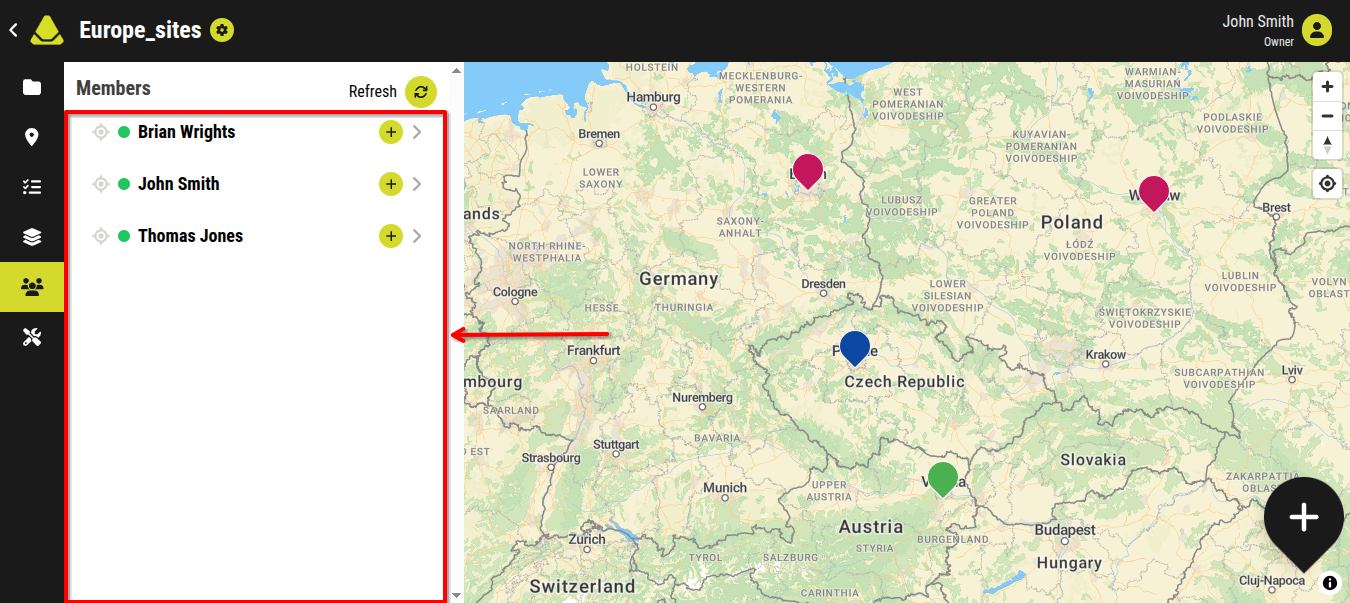
[An example of how the memebers list might look like]
The members list shows all users in the project. It is organized into rows, with each row representing one user. Each row contains (from left to right):
- A locate button
- The user’s status
- The user’s name
- An assign task button
- An expanding arrow
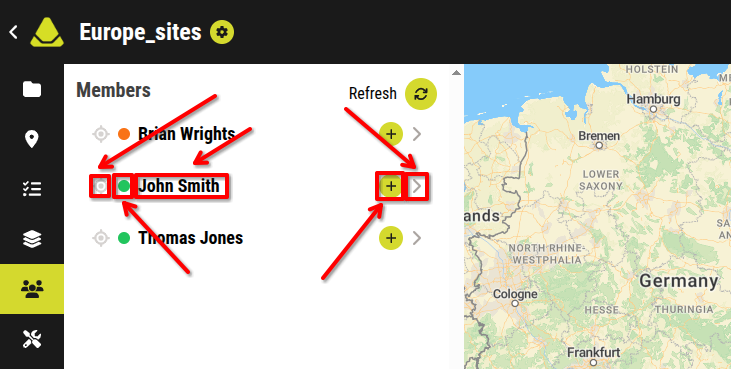
[Showcase of the buttons inside each row of the members list]
Locate button
This button allows you to locate a user on the map, if:
- location sharing is enabled in the project
- the user is sharing their location
Clicking this button:
- Centers the map on the user’s location
- Opens the user’s location log
User status
This indicator shows whether the user has been assigned a task and their current activity. The color changes based on status:
- User has not been assigned a task: Green
- User has been assigned a task and is actively working on it: Orange
Assign a task button
The Assign a task button ("+" icon) starts the process of assigning a task directly to the selected user within the project.
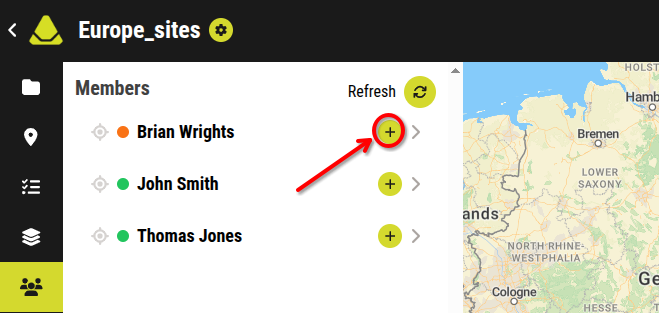
[Showcase of the Assign a task button]
Expanding arrow
The expanding arrow displays a list of all tasks assigned to the user.
These tasks appear as boxes similar to those in the tasks list within the tasks tab.
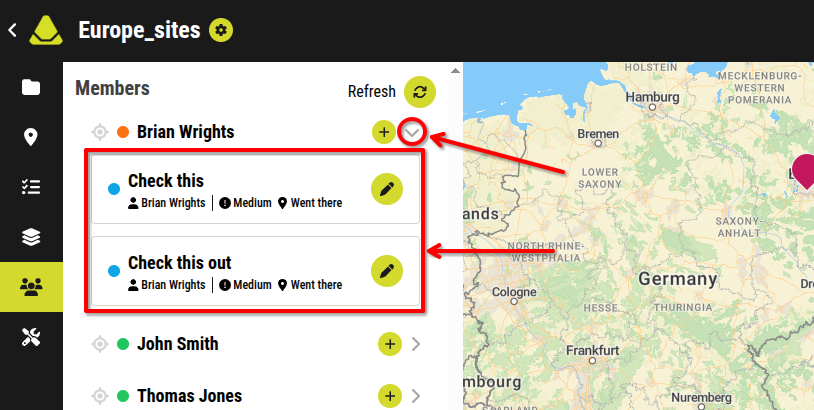
[An example of the how the tasks list expanded under a member in the members list might look like]
Refresh button
Above the members list is a Refresh button.
This button reloads the tab and updates the displayed data, ensuring that any recent changes are reflected.
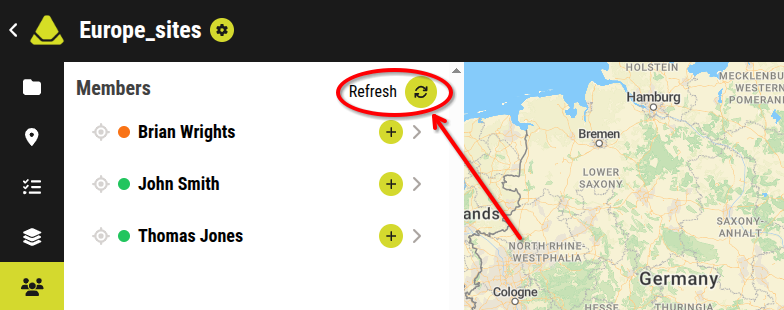
[Showcase of the Refresh button]