Tasks tab
Clicking the second tab in the global navigation bar bar on the dashboard opens the "Tasks" tab. The main area of this tab displays a list of all the tasks that are relied in any way to the user. Tools for interacting with this tasks lists are displayed above the list.
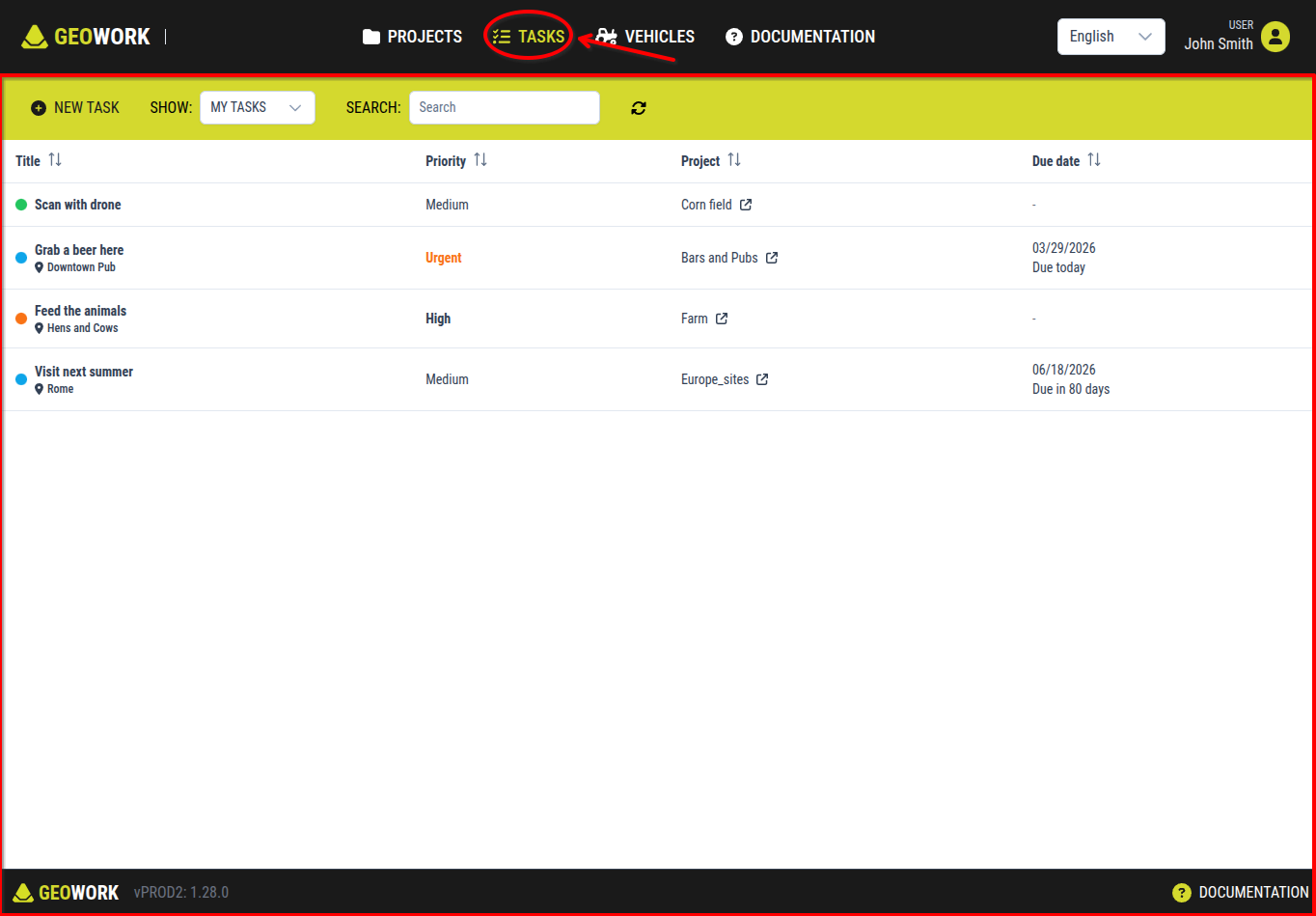
[Showcase of the tasks tab on the dashboard]
Tools section
Directly below the global navigation bar is located a tools section. This section contains controls for interacting with the tasks list and creating new tasks.
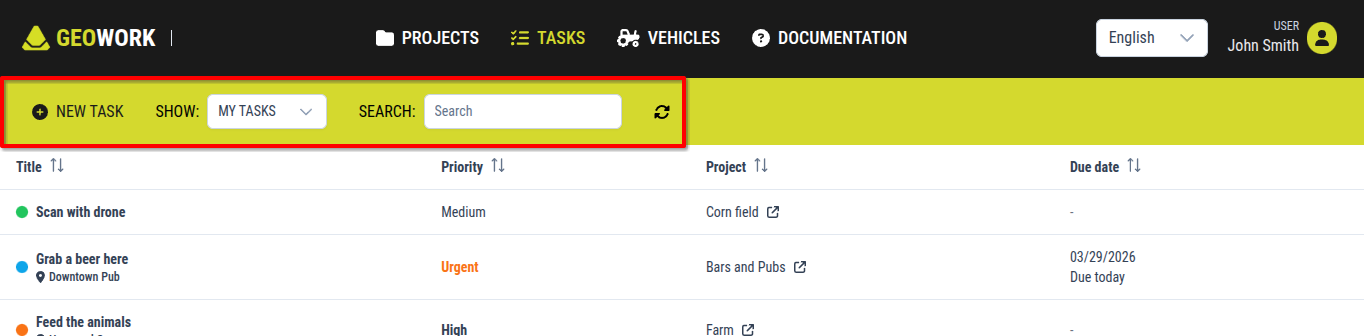
[Showcase of the tools section of the tasks tab on the dashboard]
It consists of the following elements:
1. "New Task" button
Pressing this button starts the proces of assigning a task.
2. "Show:" button
This button allows switching between different tasks lists.
There are two options:
2.1. My tasks
2.2. Task management
"Search" button
This button allows users to search for a task in the tasks list by entering the task name.
"Refresh" button
This button refreshes the displayed tasks list in case a some changes have happened in the tasks after the dashboard was opened, and are therefore not yet displayed.
Sortage section
Below the tools section stretches acrros the entire with of the screen a sortage section. It serves to adjust how the tasks list is displayed.
There are 5 categories, next to each one is a sortage button that, when pressed, switches the sortage of the certain category. It has 3 modes:
- up and down arrows - the sortage of this certain category is not activated
- up arrow: the certain category is sorted from the bottom to the top by length
- down arrow: the certain category is sorted from the top to the bottom by length
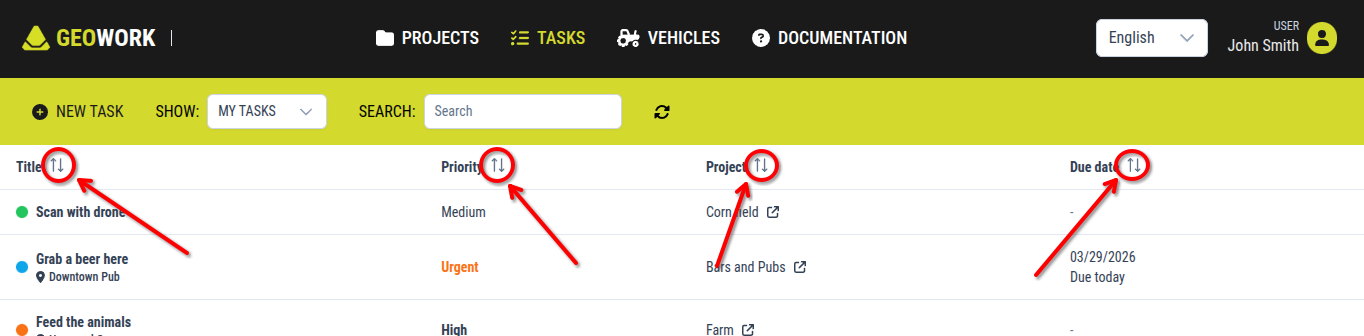
[Showcase of the sortage section of the tasks list in the tasks tab on the dashboard]
Tasks list
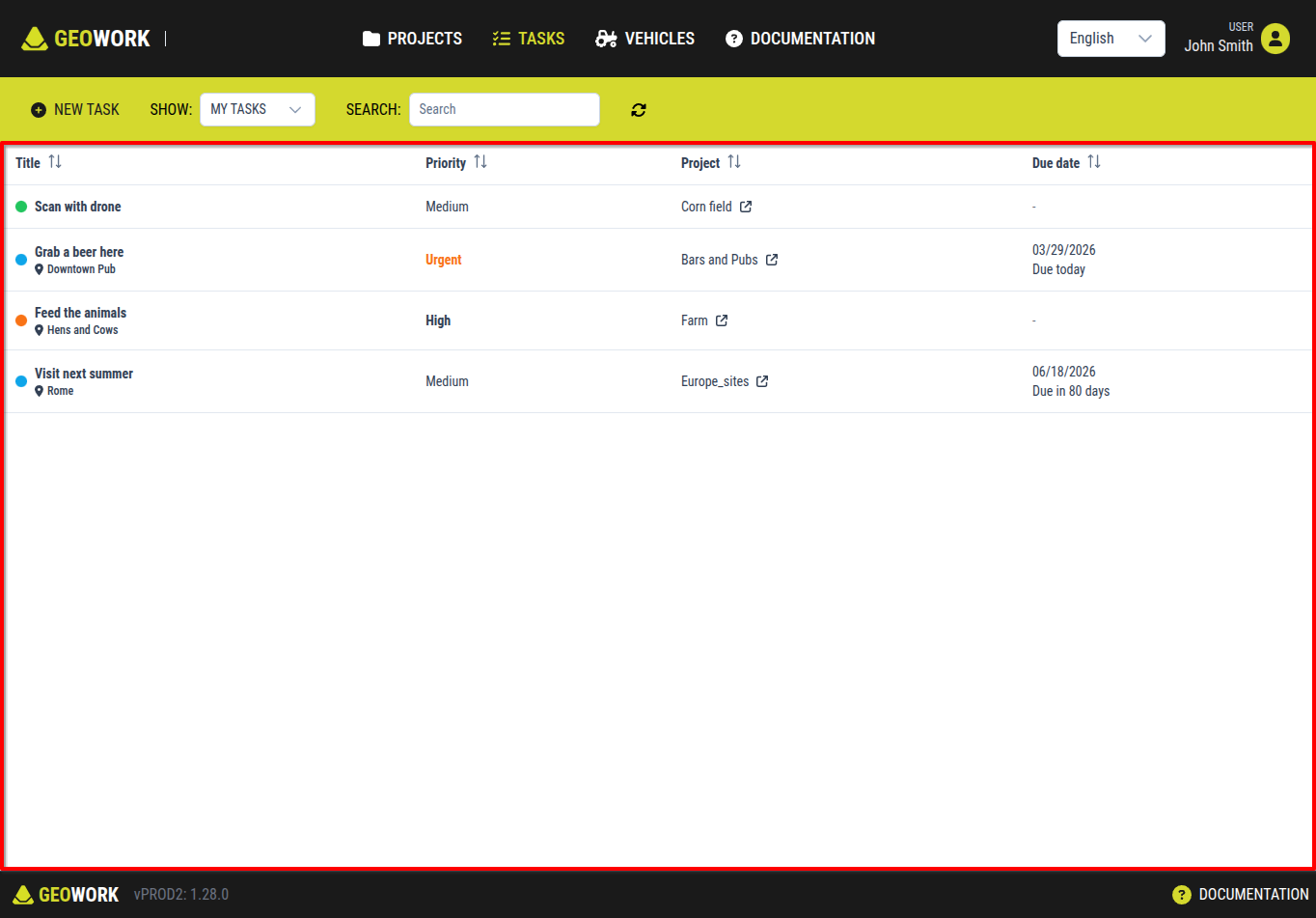
[An example how the tasks list in the tasks tab on the dashboard may look like]
Below the tools section and the sortage section is a list of all tasks that are assigned to the logged-in user or that are managable by them. Each entry in the list contains:
- an edit button, which is only avaiable when switched to Task management
- a cicrle colored based on the Task's status.
- the name of the task
- the priority of the task- the name of the task
- the project within which the task was assigned
- the the date due to which the task is
Clicking on a tasks in the tasks list opens up the interface to manage and interact with the specific tasks.
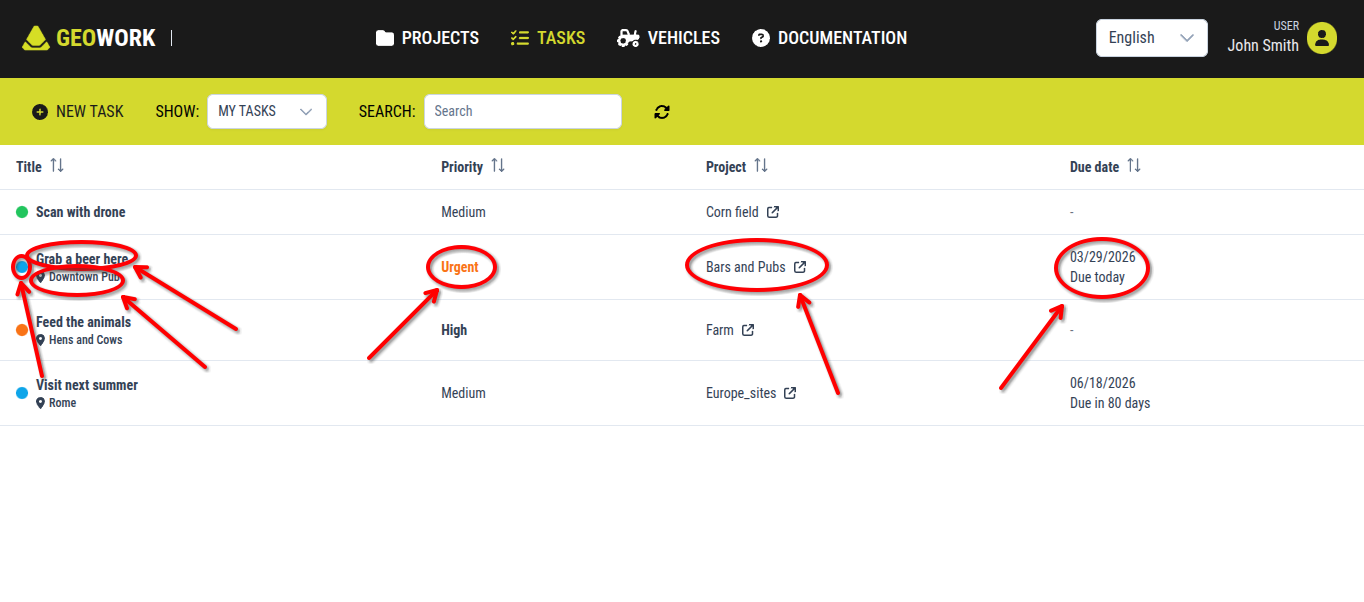
[Showcase of the displayed information for each task (the edit button is not displayed in the picture)]