Log-in
To use GeoWork properly, users must be logged in.
When opening the application without being logged in, the welcome screen will be displayed. From here, users can proceed to log in.
If you do not have a GeoWork account yet, please redirect to the account creation page first.
Log-in through credentials
This is the simplest method of logging in. It requires you to remember your email address and password, or have them stored in your device’s or browser’s password manager.
- Enter the email adress that you have specified during the account creation process in the Email textbox
- Enter the password that you have specified during the account creation process in the Password textbox
- After entering your credentials, you can click on continue
-> if you have done everything right, you should be redirected to the dashboard
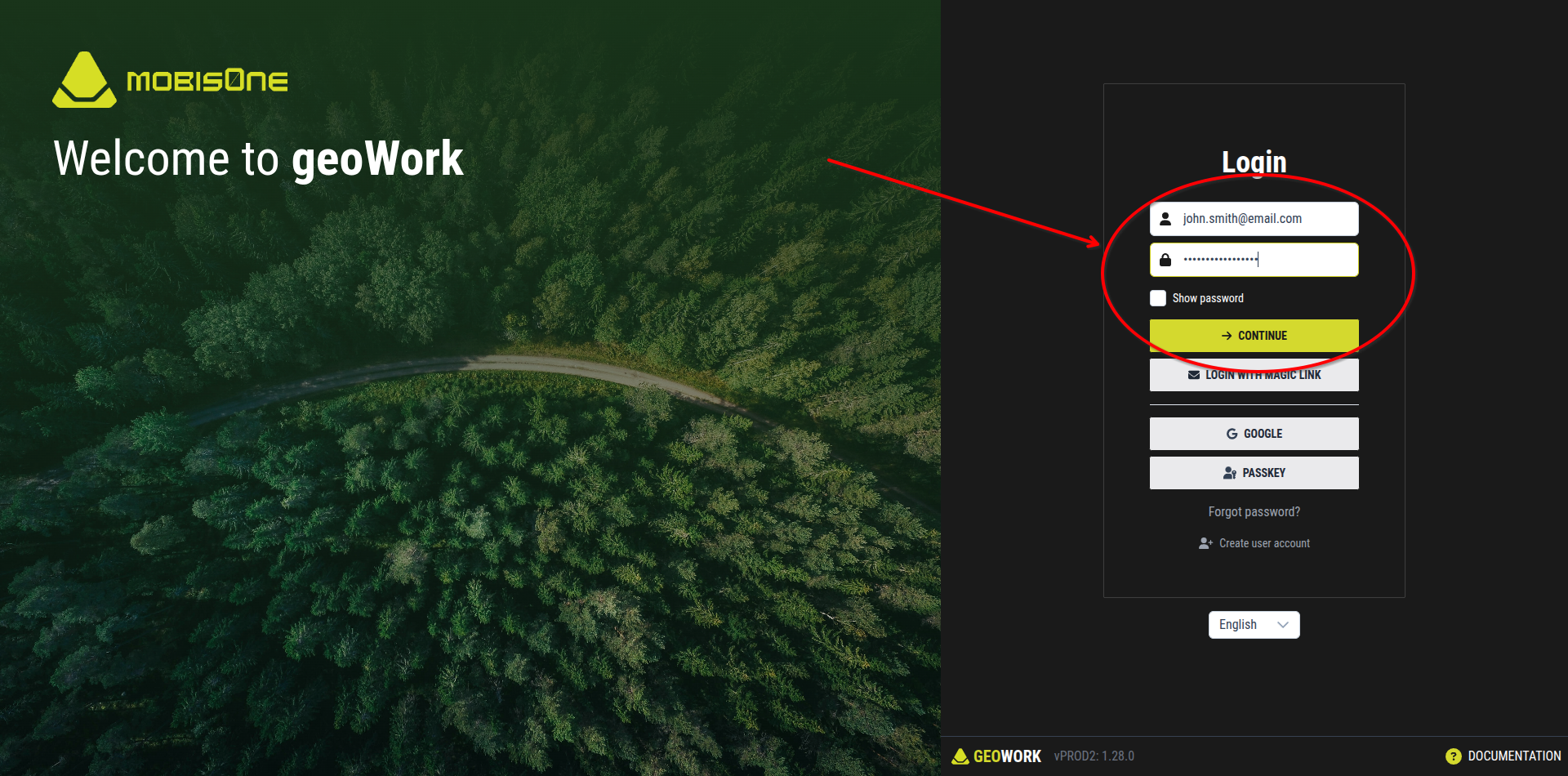
[An example of filled out log-in information]
Log-in with magic link
This method of logging in allows to skip entering the password. If you are logged to the account's email adress on the device where you want to log in to GeoWork, you can use this method.
- Enter the email adress that you have specified during the account creation process in the Email textbox
- Click the "Login with magic link" button
- Go to your email inbox, and find the latest email from *notifications@geowork.mobis1.com
- Press the "Log in to GeoWork" button
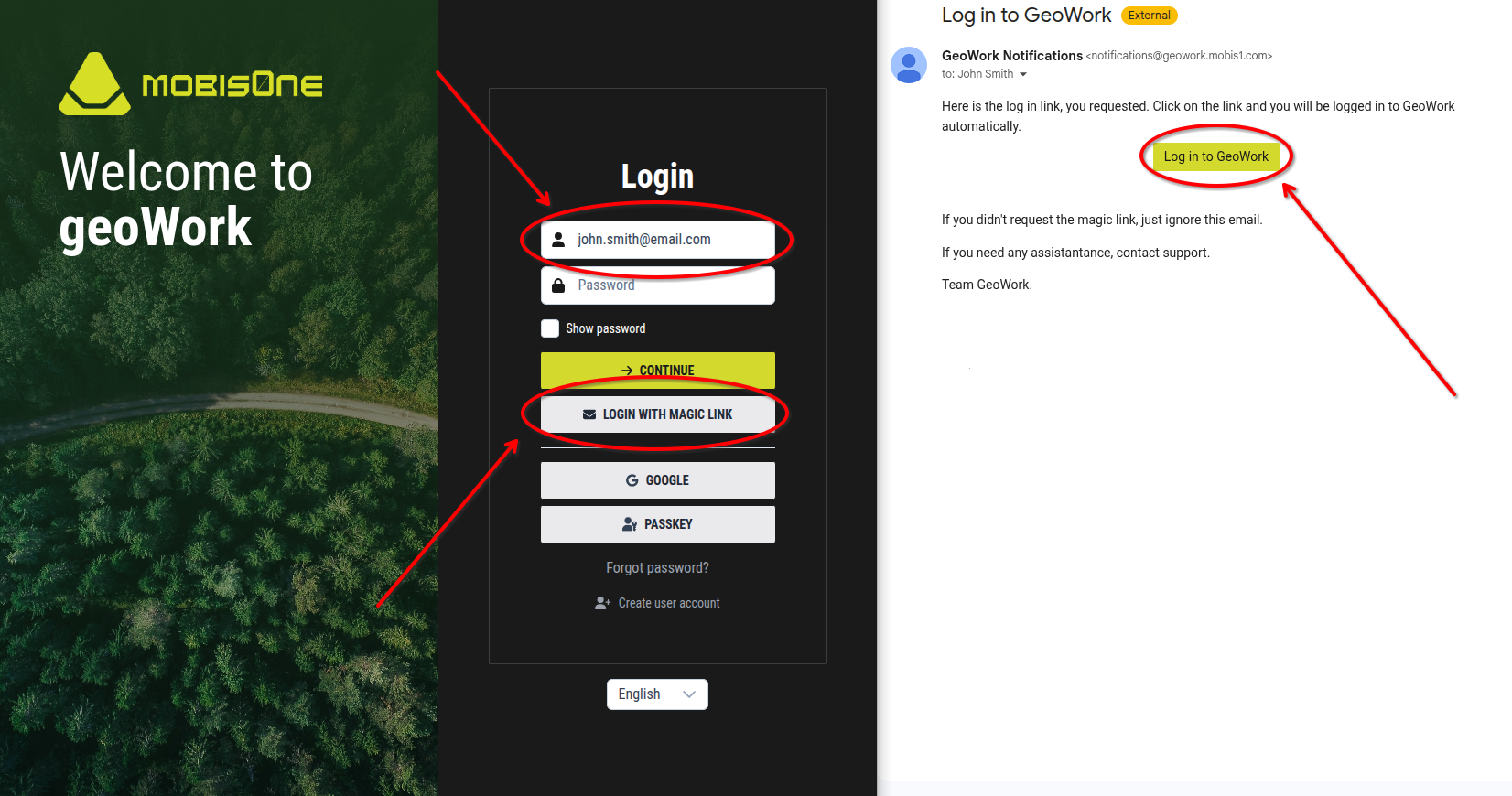
[Left: A simple visual guid to generate a magic link]
[Right: An example of how the email containing the magic link may look like]
If you follow these steps, GeoWork will load up logged into your account on the device where you pressed the "Log in to GeoWork" button inside your email inbox.
Log-in using Google account
This method is for people using a Google account. Instead of just using your email adress, you can log dirrectly through your Google account, without having to input any information into GeoWork.
If logging-in using your Google account for the first time, GeoWork will automatically create an account using your Google account information.
- Press the "Google" button
- Log-in to your Google account in the pop up window
If logging-in for the first time:
- Confirm the sharing of information from your account to GeoWork
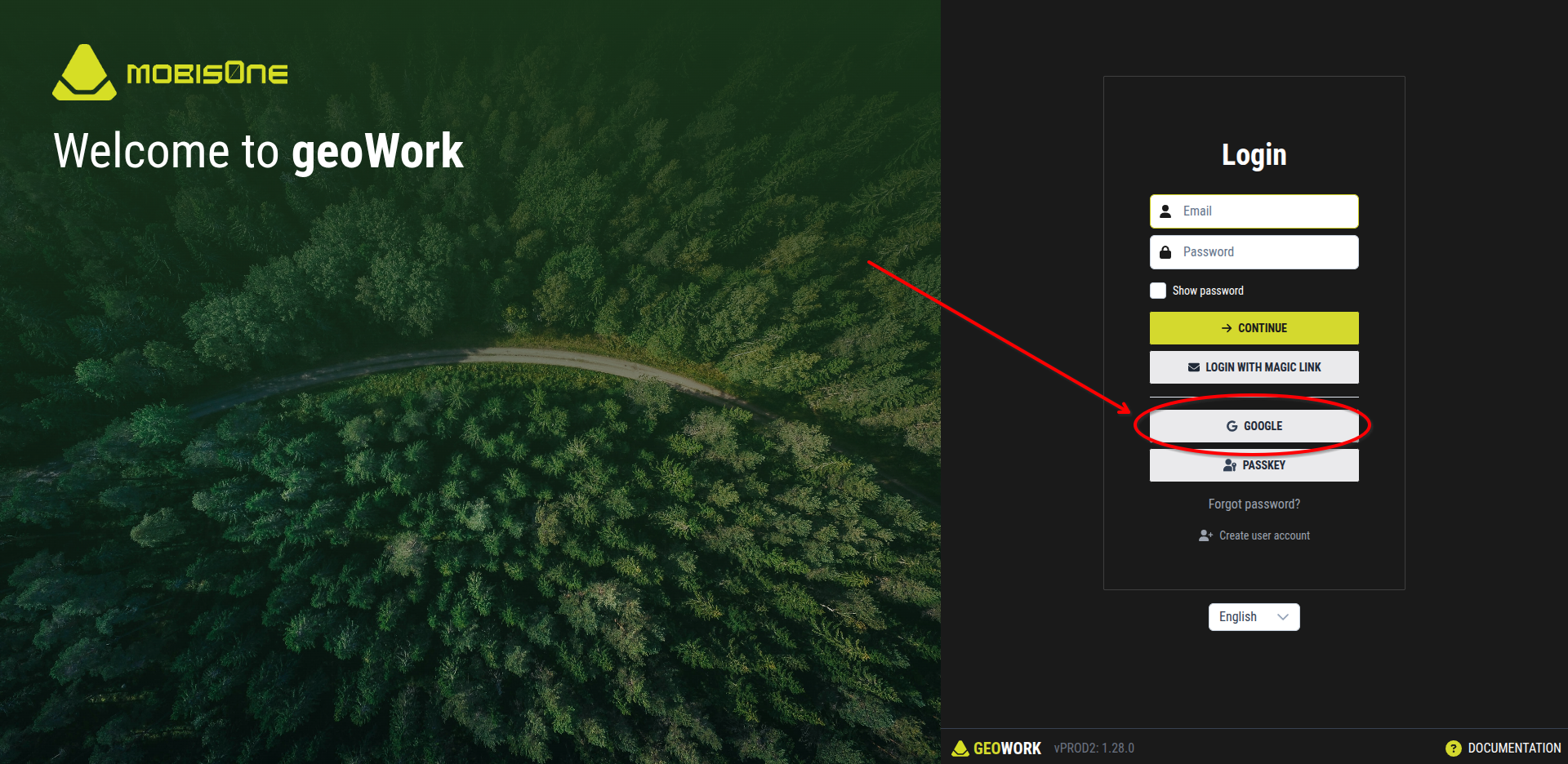
[Showcase of the button to activate the described log-in process]
Passkey
This method is only avaiable for accounts that already have a passkey.
Please refer to the user's Account settings for information about passkey creation.
Log-in failed
If the process of logging-in using any of the methods listed above did not work, there are several explanations.
- You don't have an account - in this case, create one by following theaccount creation page
- Your email adress is not verified - while creating an account, it is essential to proceed with the confirmation of your email adress
- please contact us if you no longer have acces to your confirmation email
- You have entered the wrong credentials - in case of a spelling mistake, the database will no longer be able to correctly find your email or to confirm your password
- please try carefully re-typing your credentials
- Your system has blocked the launching of GeoWork - if clicking the magic link does not open GeoWork, it can mean your system has denied the permission to open GeoWork
- please try using a different log-in method or contact us
- Google account ptoblems - if you have any problem with your Google account, you will not be able to log through it into GeoWork
- please try fixing your Google account or log-in using a different method
Reset the password
In case that you have forgotten your password and are unable to proceed with the log-in process, there is an option to change your password to a new one:
- Click on the "Forgor password?" button
- Enter the email address under which is reggistered your account
- You may recieve an email from *notifications@geowork.mobis1.com containing a link that can change your password
- Click on the link
- Enter your new password
Your password will be changed immediately, allowing you to retry the log-in dirrectly after finishing the process.
Please keep on mind that the password reset links expire in one hour and can be used only once.
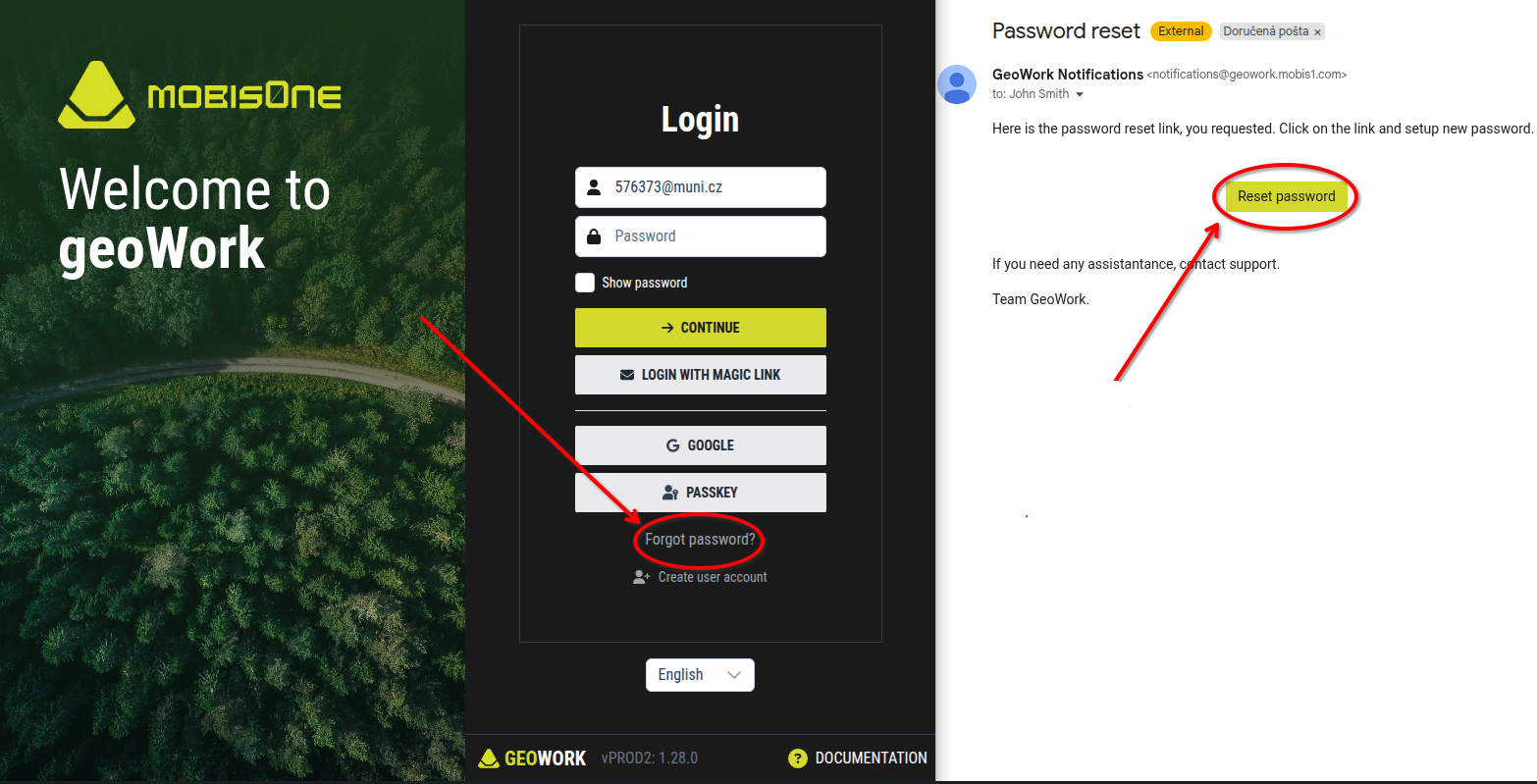
[Left: Showcase of the "Forgot password?" button]
[Right: An example of how the email containg the reset link might look like]