Vehicles
Clicking the third tab in the global navigation bar on the dashboard opens the "Vehicles" tab. The purpose of this tab is to manage all of the users vehicles that are paired with GeoWork, and to pair new ones.
The tab is constructed of the title, written in bold, next to which lies a refresh button. Located underneath is the "New Vehicle" button. The biggest proportion of the screen, under the "New Vehicle" button, is the list of all of the users' vehicles.
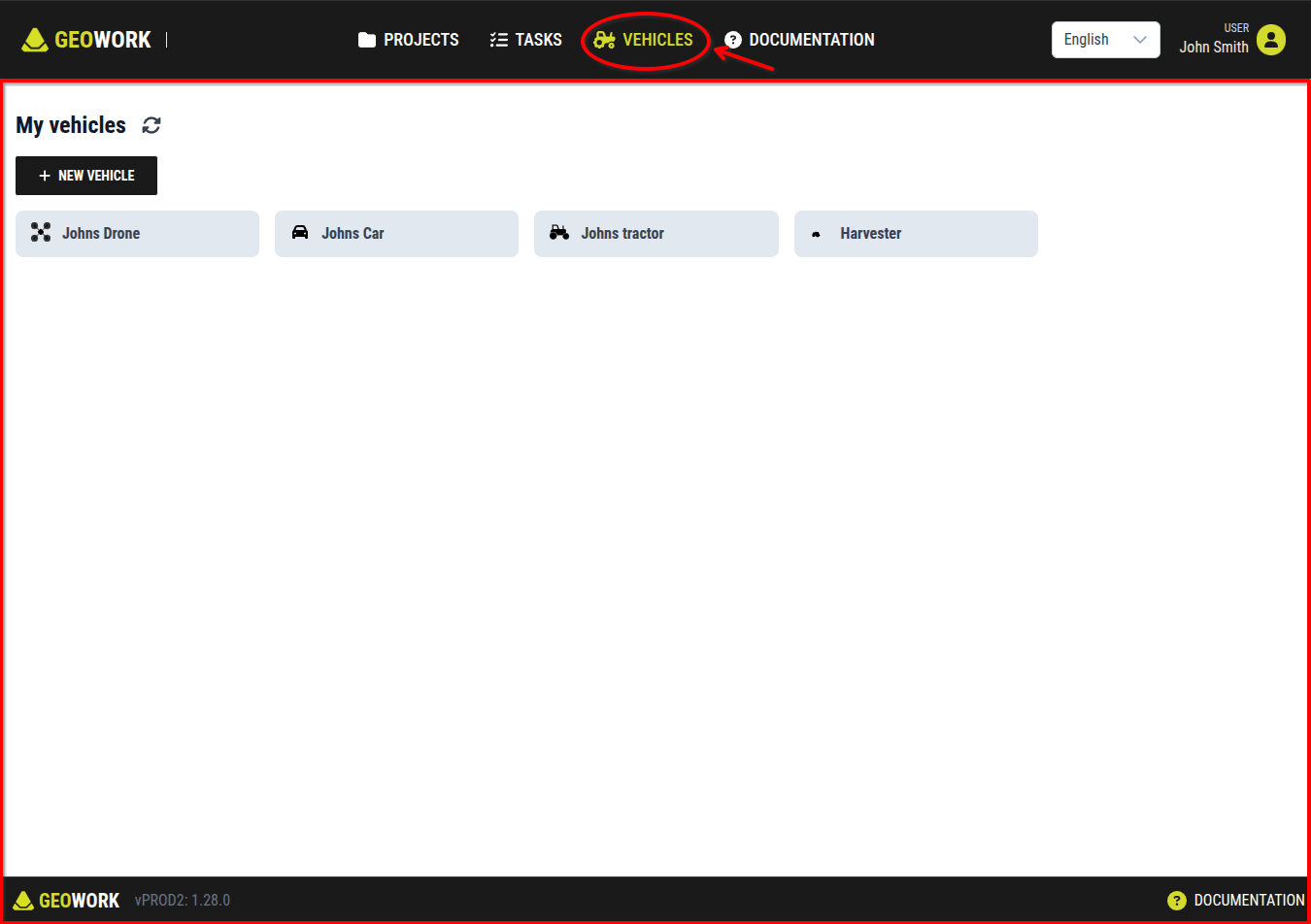
[Showcase of the vehicles tab in the dashboard]
"Refresh" button
Next to the tab title lies a refresh button. This button refreshes the displayed vehicles list in case a some changes have happened to the vehicles after the dashboard was opened, and are therefore not yet displayed.
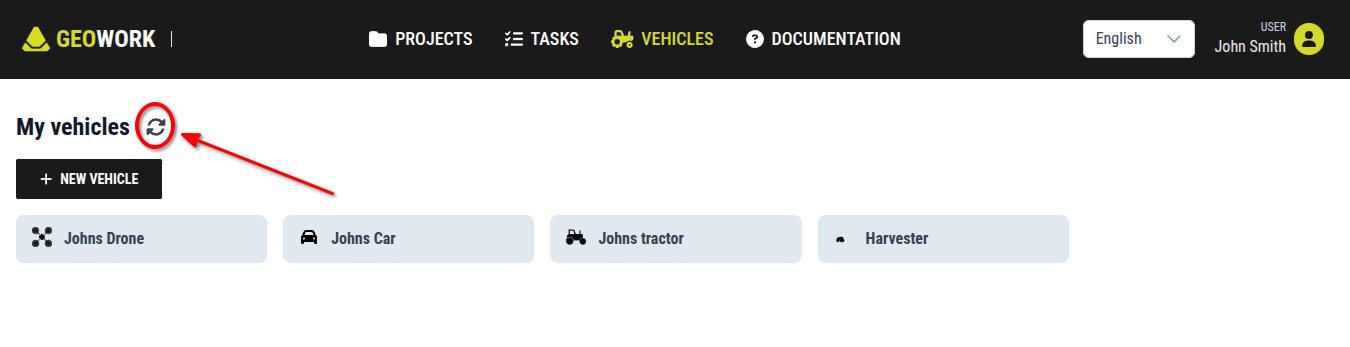
[Showcase of the refresh button]
"New Vehicle" button
Below the title is located the "New Vehicle" button. Pressing this button activates the process of adding a vehicle.
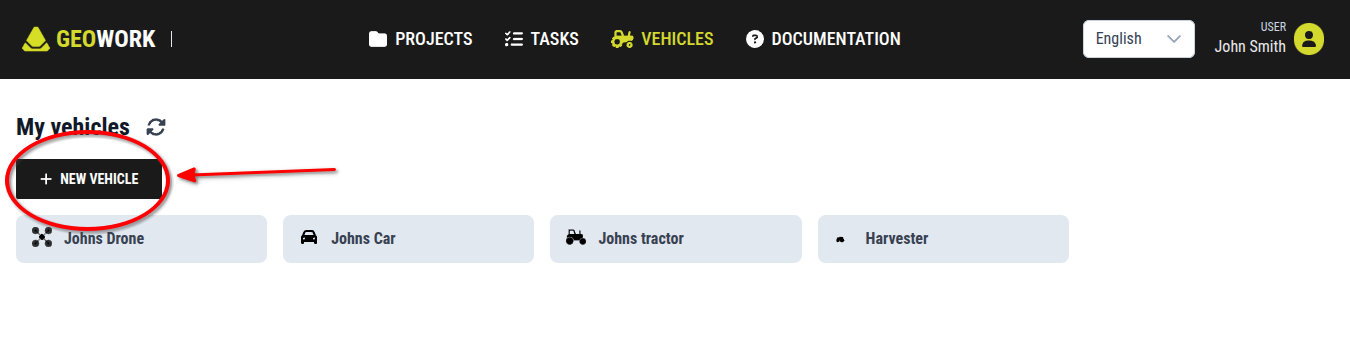
[Showcase of the New Vehicle button]
Vehicle list
Underneath the "New Vehicle" button, the entire rest of the screen is covered with a list of the vehicle. Th are displayed in tiles. Each tile contains:
Clicking on a vehicle tile in the vehicle list opens up the interface to manage and interact with the vehicle.
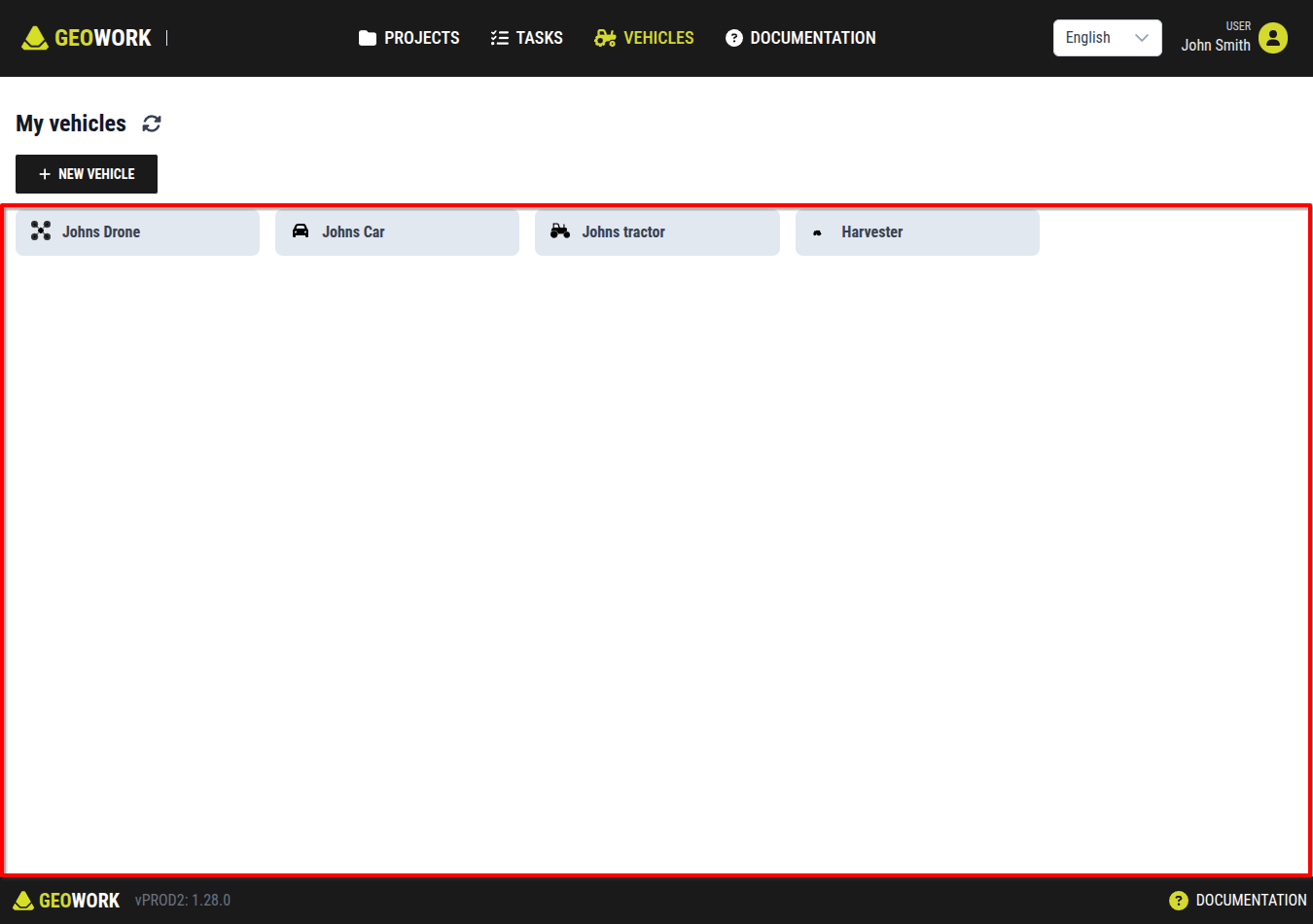
[An example of how the vehicle list may look like]