Account creation
When opening GeoWork for the first time on any device, you are greeted with the welcome screen, where you are prompted to log in. As a new user, you most likely do not yet have an account.
To create a new account, use the "Create Account" button available on the welcome screen.
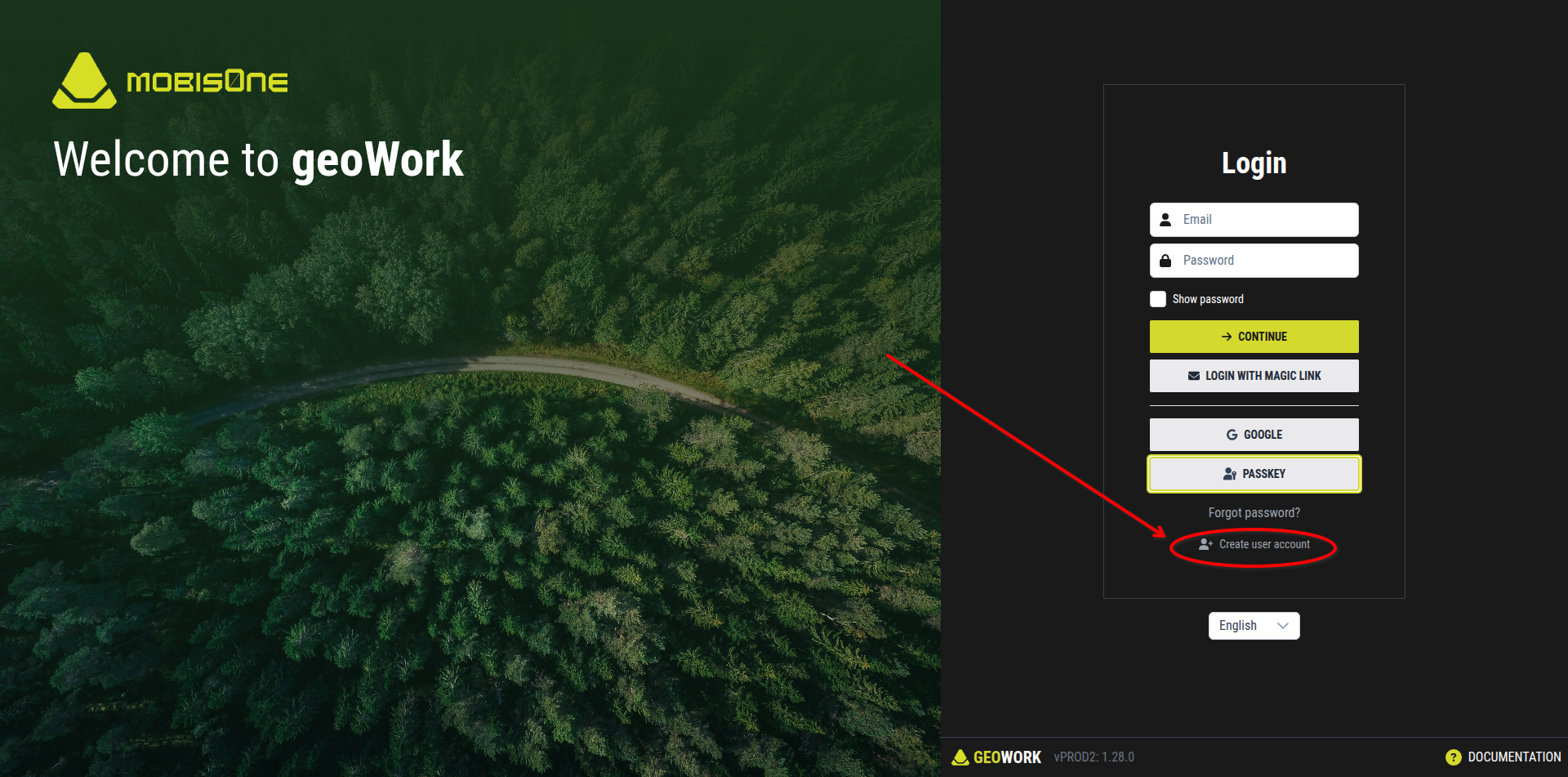
Account creation UI
Pressing the "Create Account" button will redirect you to the account creation page.
Here, the following information must be entered:
- First and last name
- Entering this information will name your account, allowing other users to recognize who you are when using GeoWork
- Enter an email address to which you have access, as the account creation process is completed through email
- This email will also be used for logging in, joining projects, and resetting your password
- Password
- Enter a password that you can remember or store securely, as it will be required each time you log in
- Use the "Show password" checkbox if you want to see what you are typing
- Confirm password
- Re-enter the same password to confirm it was entered correctly
- Use the "Show password" checkbox if you want to see what you are typing
- Captcha
- Complete the captcha to confirm that you are not a robot
- This step may be completed automatically in some cases
After entering all required information correctly, click the "Create Account" button to create your account.
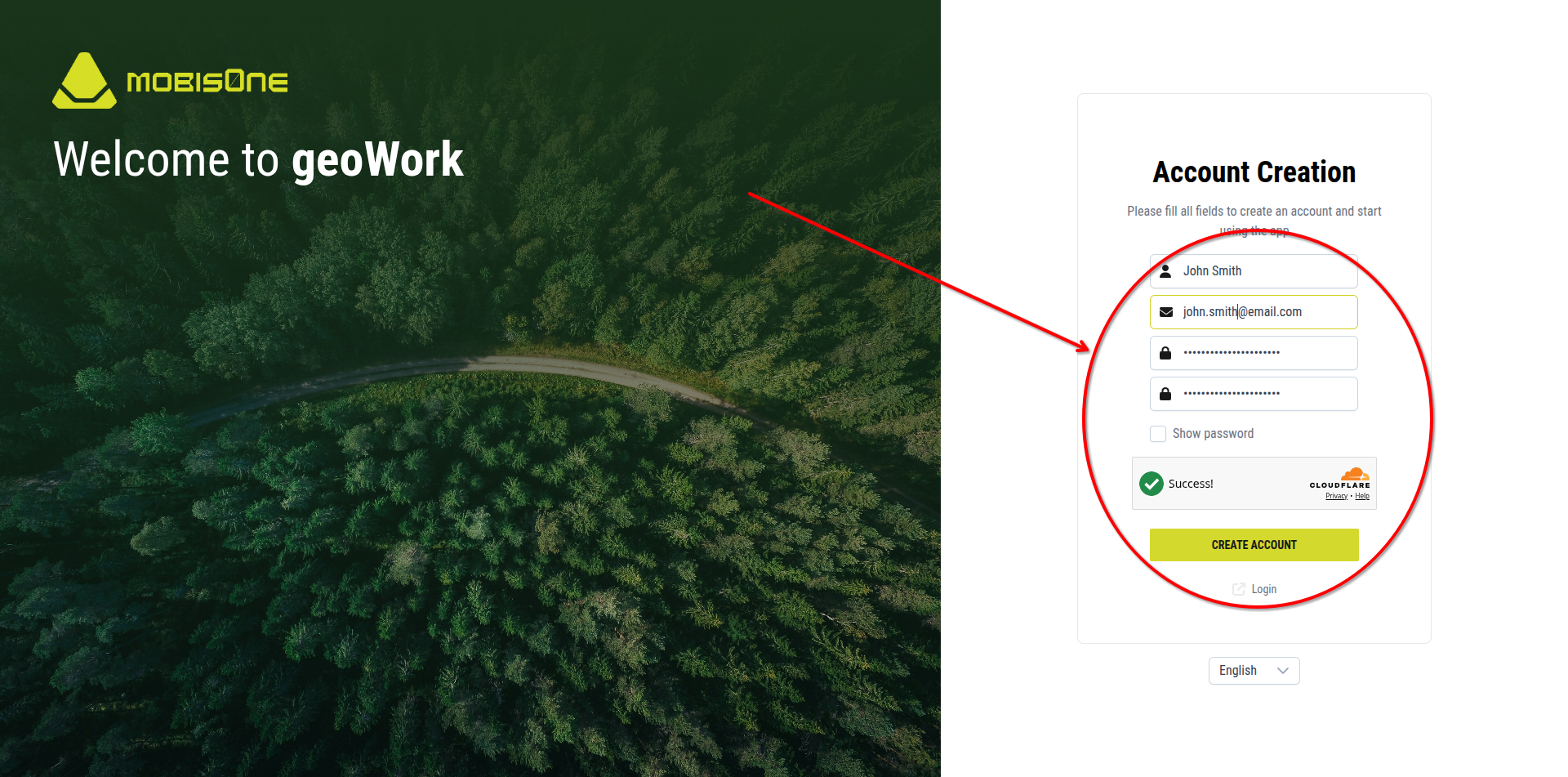
[An example of the filled in information for the creation of an account]
Confirm email
Upon clicking on the "Create Account" button, you will be shown an image requiring to confirm your the account creation in your email inbox. This is done so that accounts are not created using emails that do not belong to the ones creating them.
To do so, simply:
- Go to your email inbox
- Find the email from notifications@geowork.mobis1.com and open it
- Click on the "Verify email" button
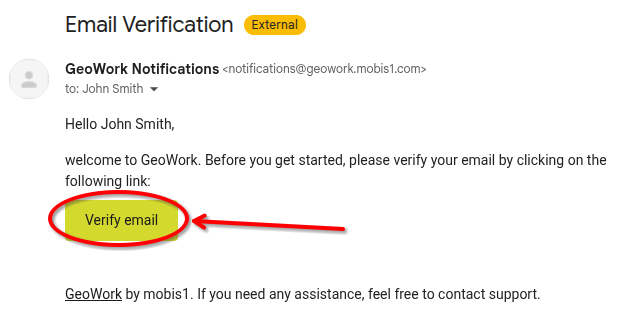
[An example of how the confirmation email might look like]
Log-in
Once you completed this the account creation process, please proceed to logging-in.